
Linked steps across menus
LINKED steps remove the "one step = a single menu" limit: the same step is shared by several menus, and updating it propagates to all of them in one click. No more re-creating "Drinks" or "Pick your treat" menu by menu.
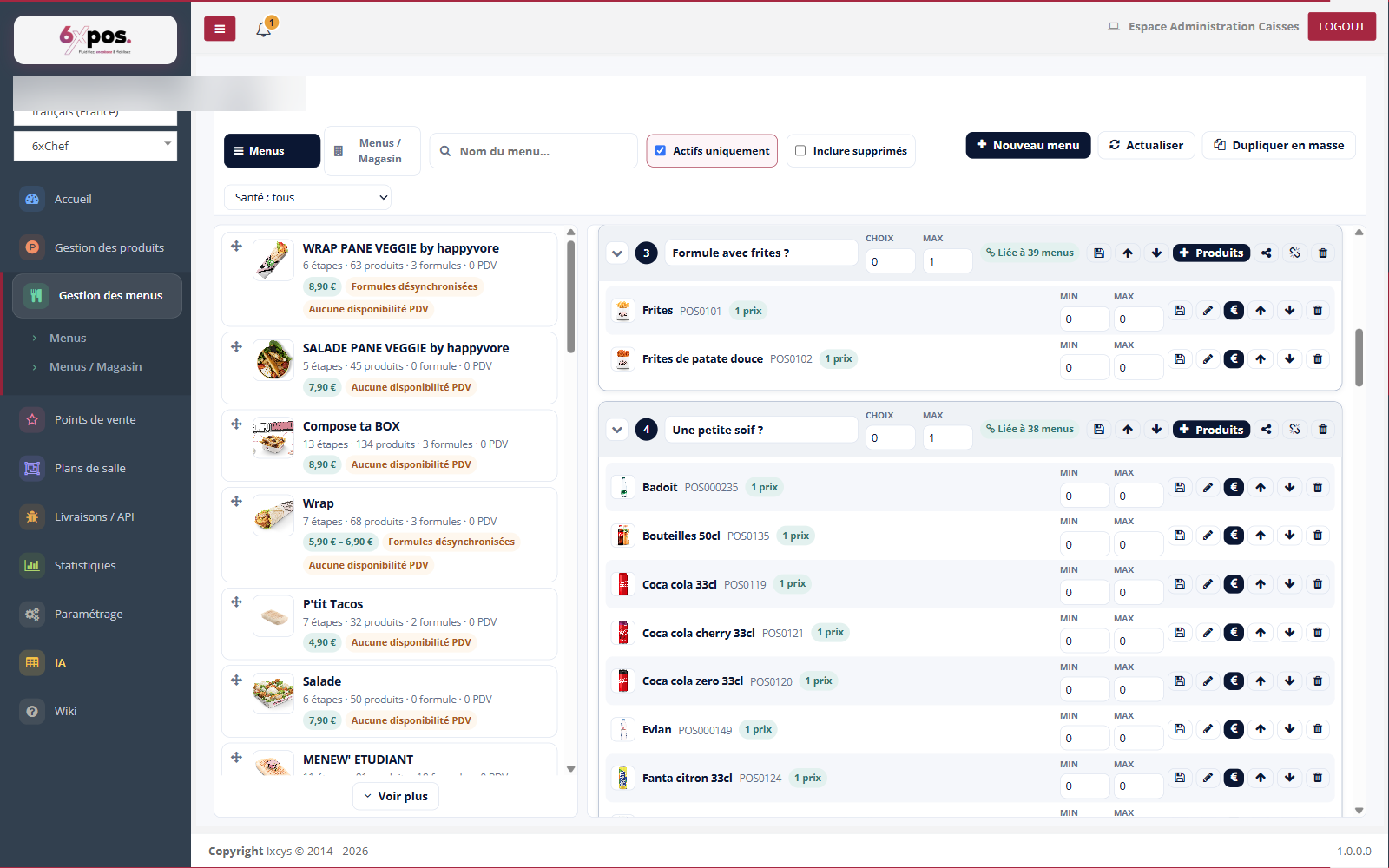
Figure 10 — Two linked steps ("Combo with fries?", "A little thirsty?"): the "Linked to N menus" badge and, in the toolbar, the Propagate and Unlink buttons.
- The "Linked to N menus" badge: on a step's header, it shows how many other menus share this same step.
- Propagate: pushes the content and prices of this step to all linked menus — the change made here becomes the reference for everyone.
- Unlink: detaches the step from this menu: it becomes independent again, and the other linked menus are no longer affected by its later changes.
Link an existing step
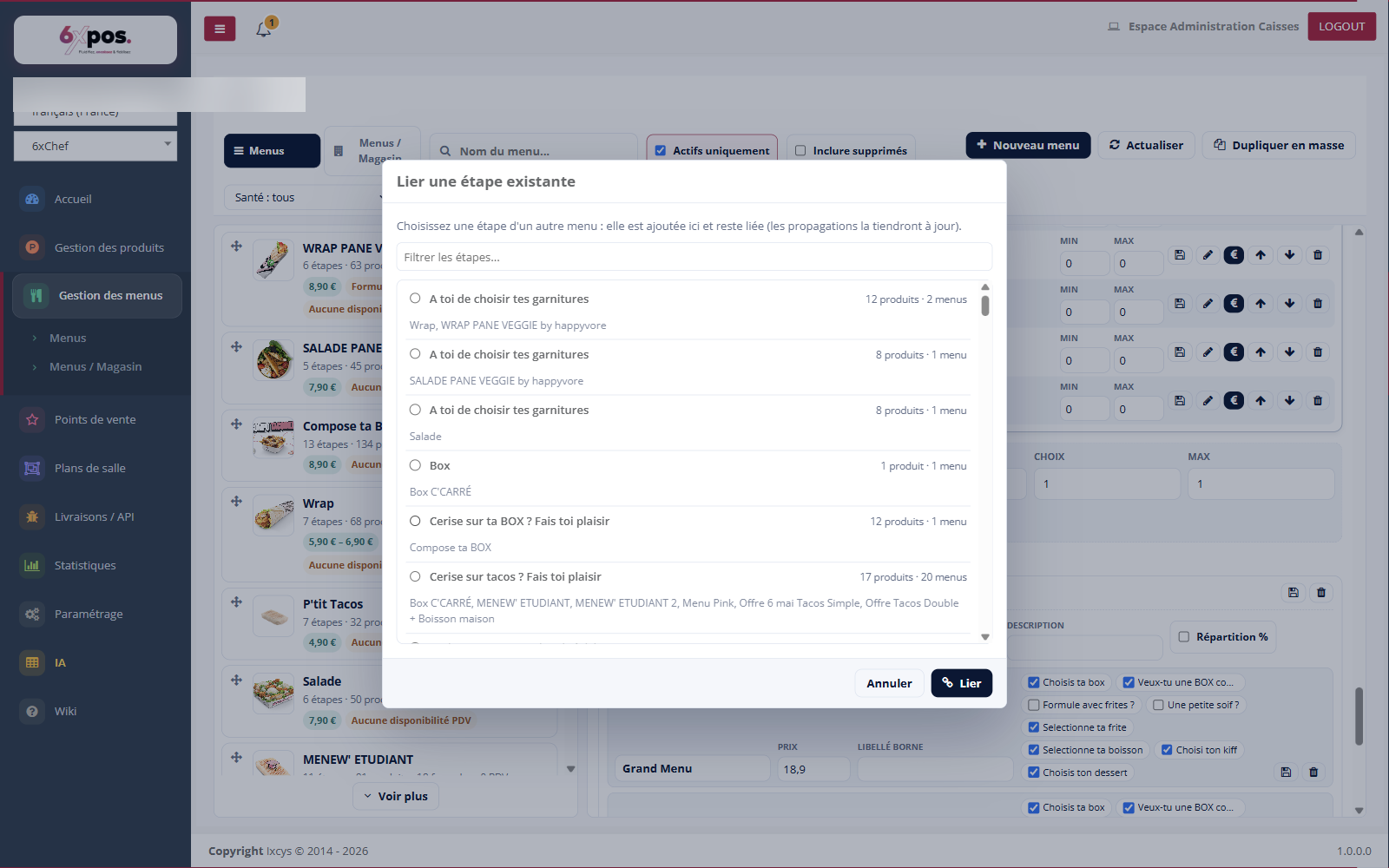
Figure 11 — The "Link an existing step" window: you choose the step from another menu (with its products and the menus involved); it is added here and stays linked.
From the steps area, "Link an existing step" opens the list of steps from the other menus — grouped, with their number of products and the menus that use them. You select one: it is added to the current menu AND linked, so that any later propagation keeps it up to date everywhere.
Good to know — linking pulls in both the content AND the configuration (Choice/Max, prices) of the source step. For a setting specific to a single menu, unlink the step first — otherwise the next propagation will overwrite it.