
Building the steps
Search by name/ref/EAN and family/category filters. Two limitations: products already in the step are hidden, and the display is capped at 60 results — if a product seems to be "missing", refine your search.
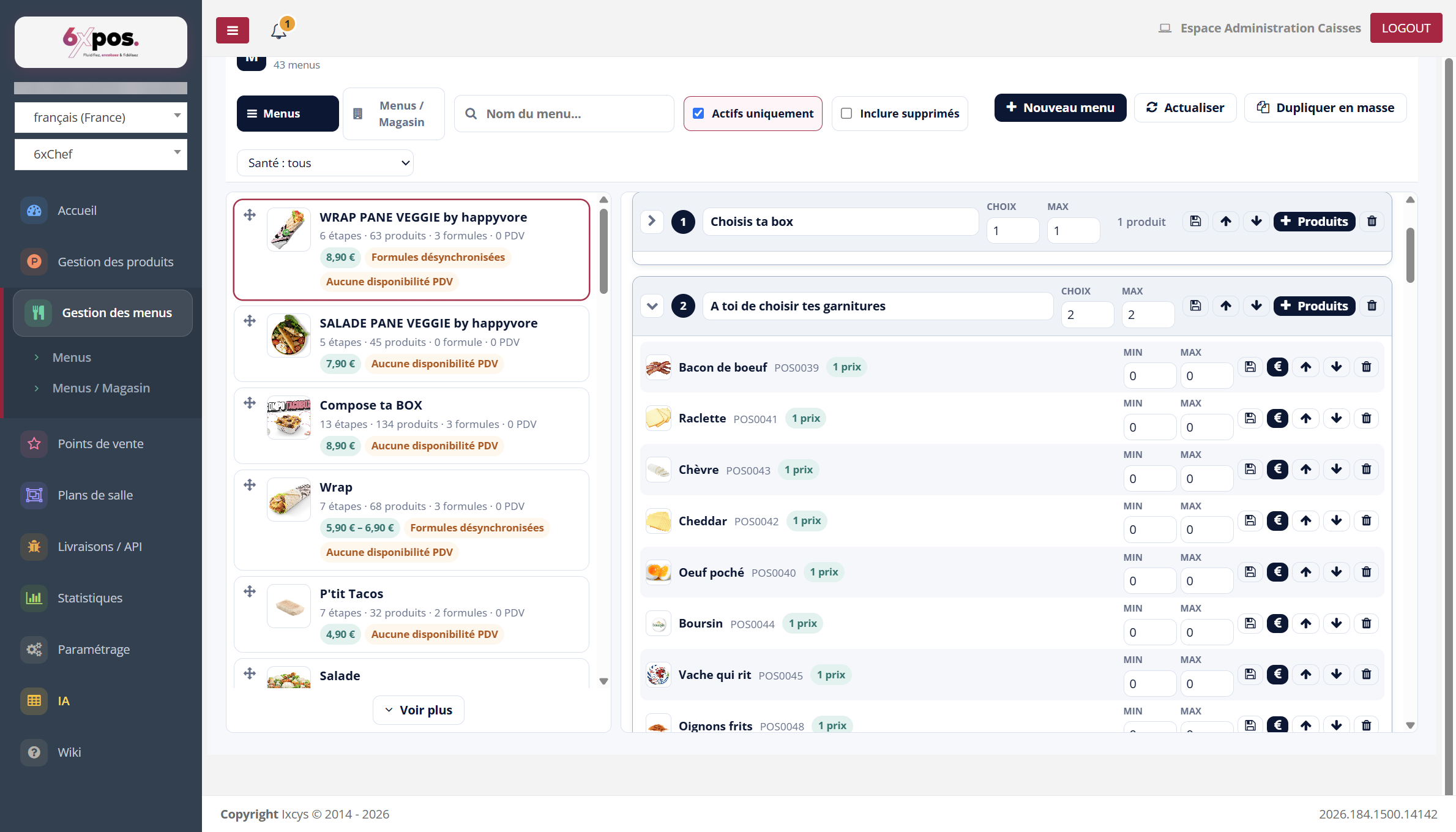
Figure 6 — The steps: the first one collapsed ("1 product" badge), the second one expanded with its products and their Min/Max.
- Add a step: Template (only pre-fills the name), name, Choice and Max.
- Choice / Max (step) then Min / Max (product): 0 = unconstrained; Min ≥ 1 = mandatory (e.g. included drink); Min = 0 = optional (extras).
- The step card: collapse/expand, rename inline, move up/down, "+ Products" (the picker), trash.
Good to know — MAJOR RULE — by default, a step belongs to a SINGLE menu. Adding the Coke to the "Drinks" step of the Lunch menu does NOT add it to the Dinner menu, even if both menus come from a duplication or from the same "Template" (which only pre-fills a name). Every change must be repeated menu by menu — UNLESS the steps are linked (see the "Steps linked across menus" section), which automates precisely this propagation.
Good to know — if you enter a Choice greater than Max, the server silently aligns Max with Choice (same for product Min/Max).
Adding products
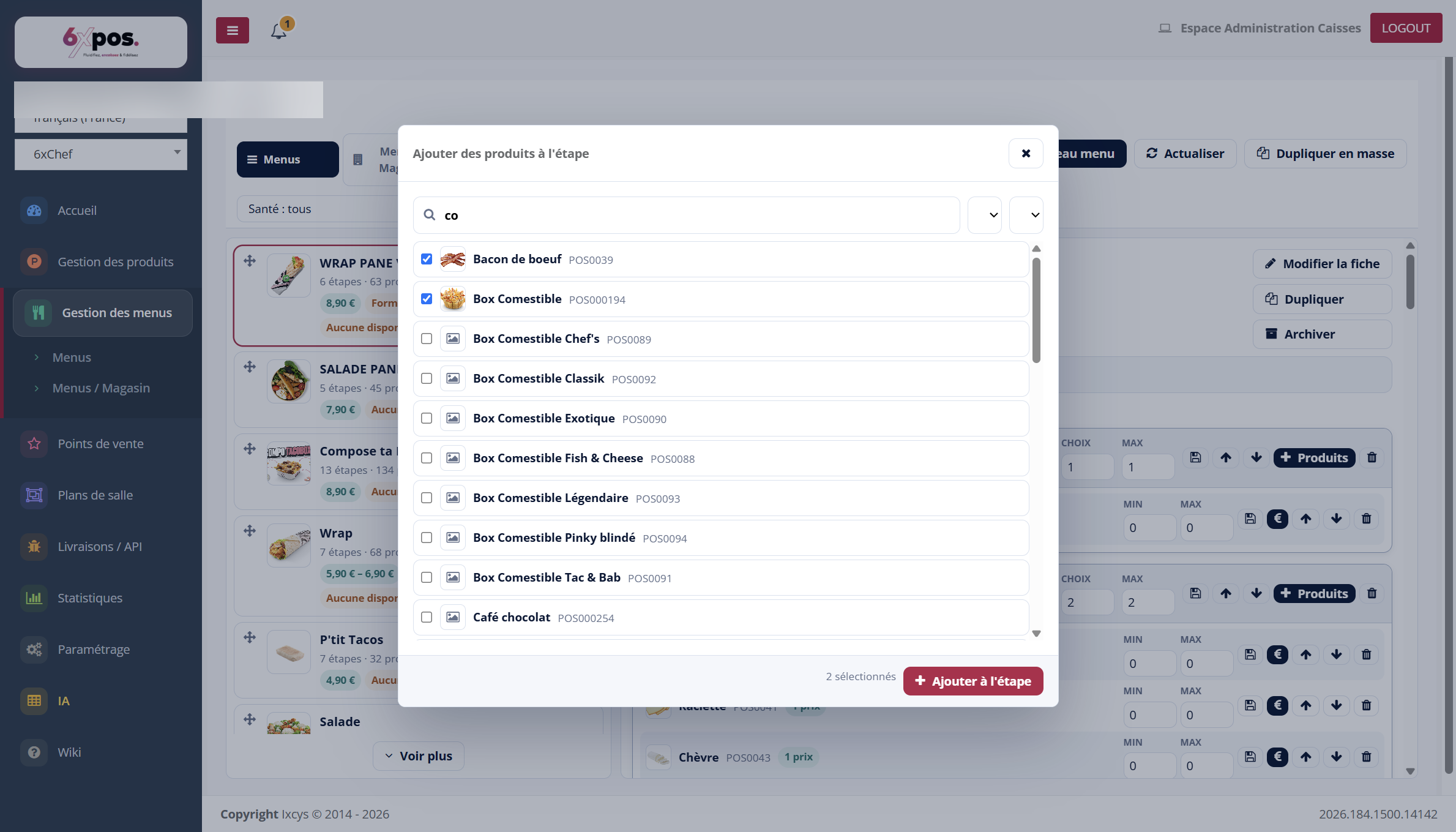
Figure 7 — The picker: search, multi-selection then "Add to step".
Search by name/ref/EAN and family/category filters. Two limitations: products already in the step are hidden, and the display is capped at 60 results — if a product seems to be "missing", refine your search.
A product's price within the menu
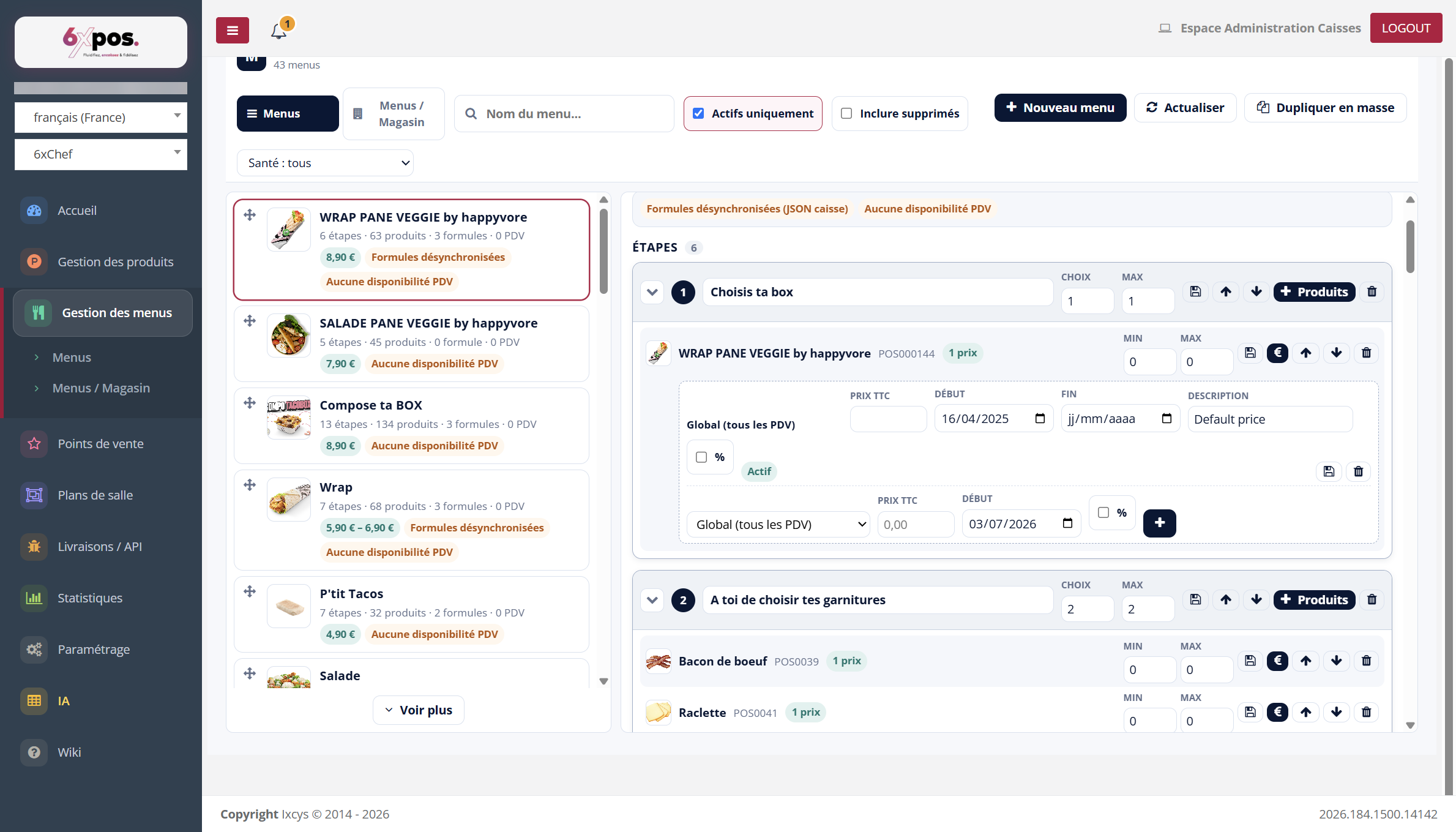
Figure 8 — The € button on a product line: price override specific to THIS menu, by POS or Global, with a period.
Independent of the catalog price: €0 = included at no extra cost, otherwise a supplement is charged. The "N prices" badge flags existing overrides.
Good to know — removing a product from a step and then adding it back erases its specific prices — remember to re-enter them.
Editing a product without leaving the menu

Figure 9 — On each product line, the pencil opens the product's full record in a new tab.
The pencil on each product line opens the product's record in a new tab: handy for fixing a catalog price, a photo or an allergen spotted while building the menu, without losing the menu you are currently editing.