
Products: the list
The module's main screen: the entire catalog, with filters and completeness controls.
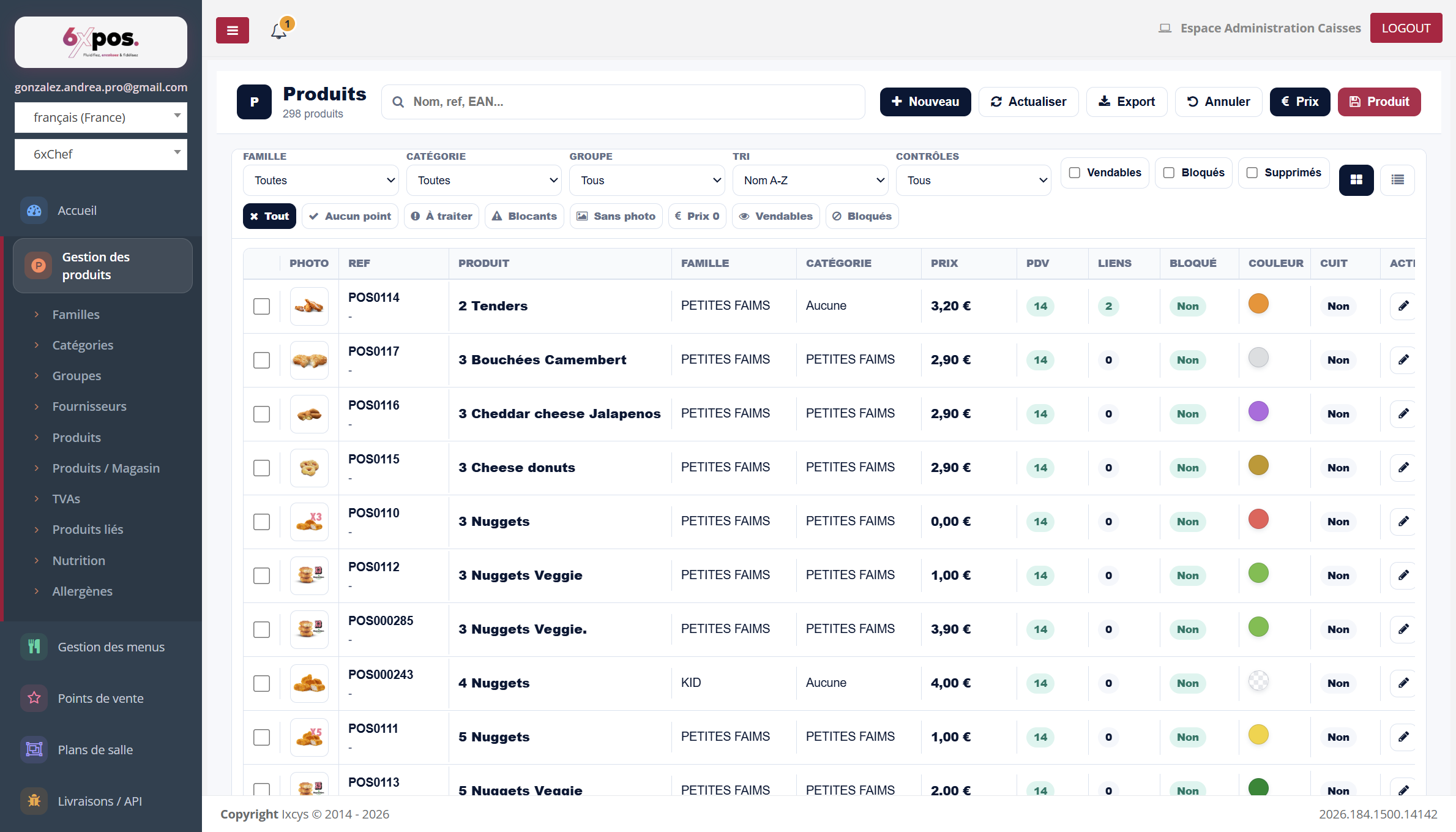
Figure 1 — The product list: filters, control badges and summary columns.
- Filters: family, category, group, sorting and controls, plus the Sellable / Blocked / Deleted checkboxes (deleted products remain viewable).
- Columns: photo, reference + EAN, name, family, category, price, number of active POS, number of links, blocked, color, cooked.
- Row actions: pencil = open the record, € = go straight to prices, chain = go to linked products.
- Display: list / cards toggle at the top right; pagination at the bottom (50 products per page); comfortable/compact density. Filters and density are remembered in your browser.
- Work views: the star saves the current filter combination under a name (12 views maximum) so you can find it again in one click.
- Export: exports the filtered list to CSV, which can be opened in Excel (cap: 20,000 rows).
Good to know — “deleted” products are never erased: deletion is a reversible archiving (the product keeps its prices, links and history). Tick “Deleted” to view them again and restore them. The only exception: “Cancel” right after a creation actually deletes the product.
The control badges
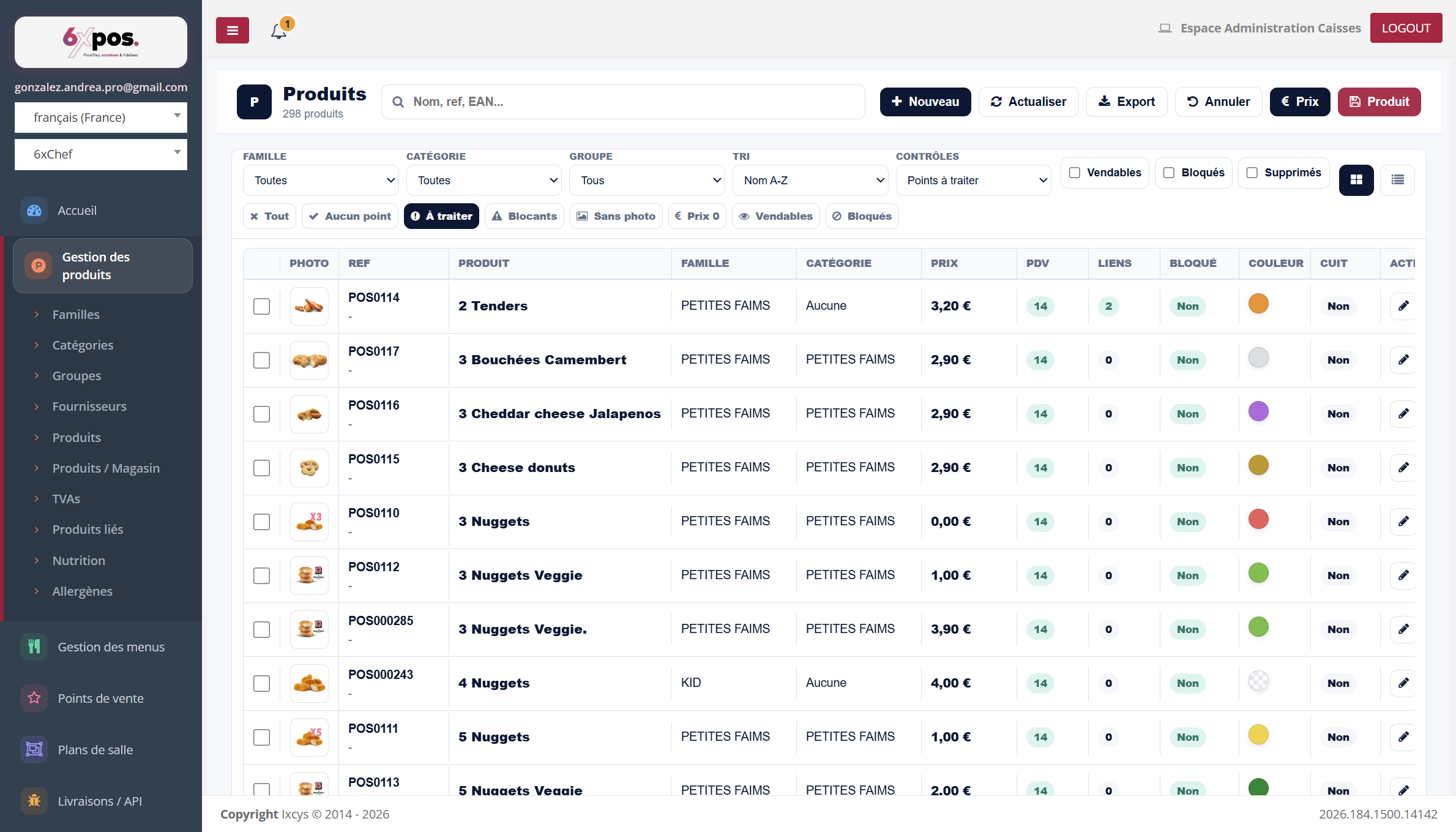
Figure 2 — The “To process” control enabled: the list now only shows the products to fix.
The badges filter the list in one click: All, No dot, To process, Blocking, No photo, Price 0, Sellable, Blocked. It is the catalog review tool: “No photo” and “Price 0” immediately isolate incomplete products.
Six automatic controls assess each product: image present, non-zero price, active POS, blocked/sellable consistency, group filled in and online sales information. Their status can be read on the Controls badge of the record (OK, To complete, To fix).
Multiple selection and bulk actions
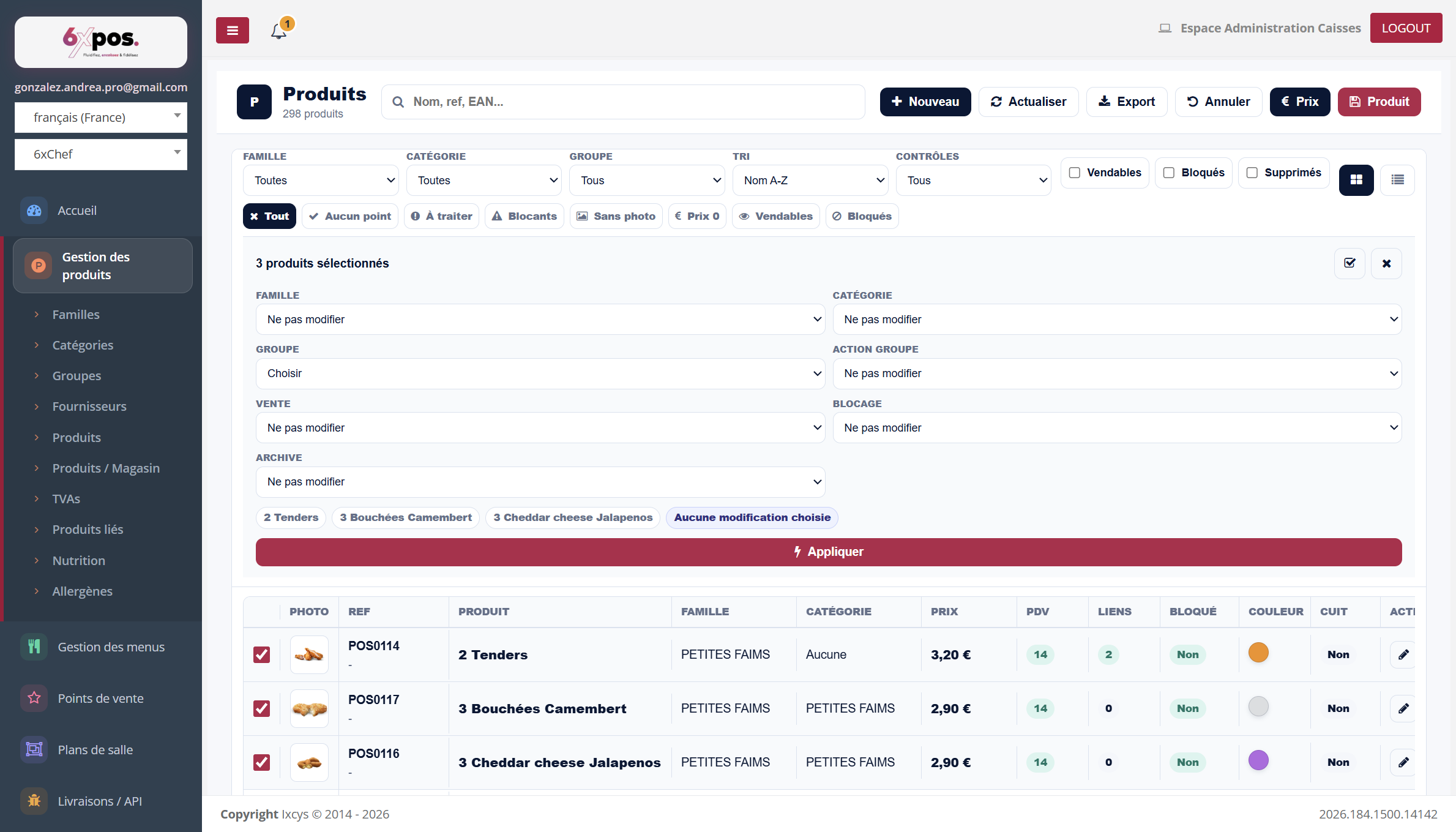
Figure 3 — Three products ticked: the bulk actions panel appears below the filters.
Ticking products opens the “N product(s) selected” panel: bulk change of family, category, group, sales status, blocking and archiving. The panel summarizes the products concerned and the chosen changes before “Apply”.
Creating a product
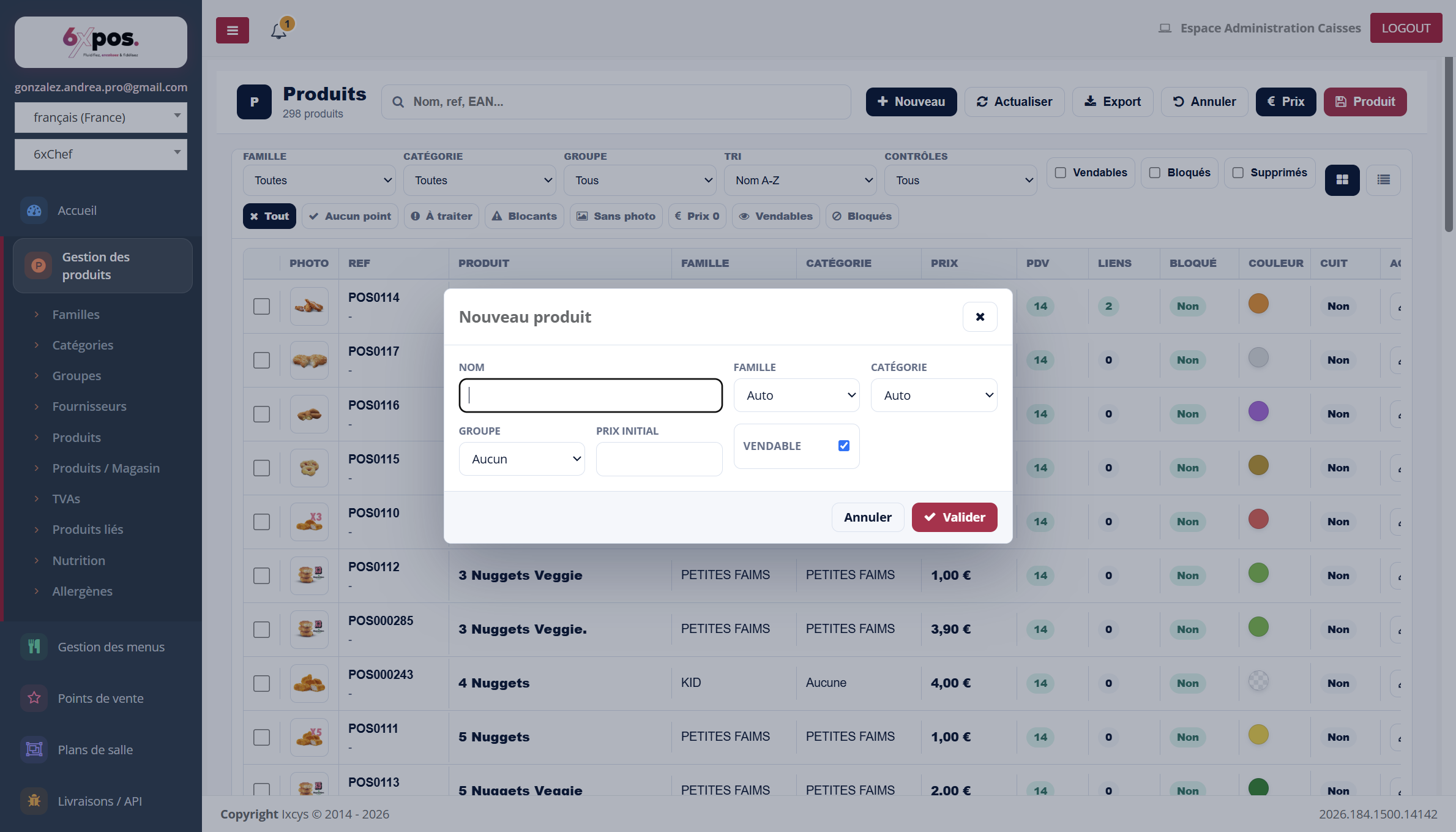
Figure 4 — The “New product” window: the essentials to get started, the rest is completed in the record.
“+ New” asks for the name, the family and the category (“Auto” deduces them), the group, the initial price and the sellable status. The record then opens to complete photos, prices per mode and links.
Good to know — the initial price is applied by default to ALL points of sale and ALL sales modes (refinable afterwards in the record). The reference POSnnnnnn is generated automatically; a reference entered blank or already in use is replaced by a generated reference — the confirmation message indicates this.