
Linked products
Linked products define what the POS till and the kiosk offer alongside a product: extras, sides, suggestions.
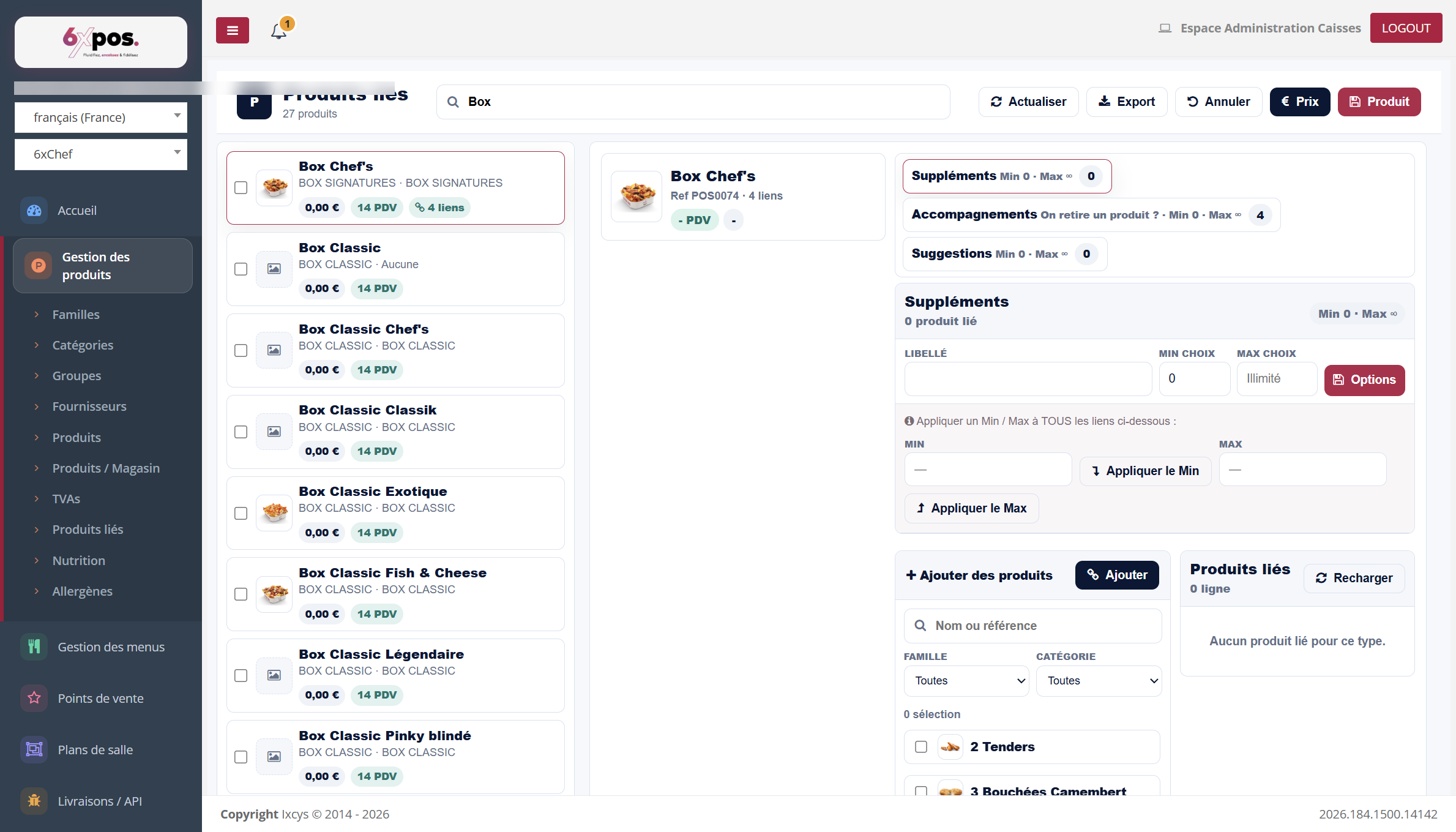
Figure 18 — The linked-products workbench: link types on the left of the panel, product adding on the right.
- Link types: Extras, Sides (“should we remove a product?”), Suggestions… Each type carries a Min and a Max number of choices.
- Adding products: the “+ Add products” panel searches the catalogue (family/category filters) and adds to the selected type.
- Per-link settings: Min/Max per link, “Free” (number of units offered before billing — e.g. 2 free sauces, the 3rd chargeable), “Apply the Min / the Max” to all, an Options button for a link’s details.
Good to know — an empty Max or a Max of 0 means UNLIMITED — no need to enter a large value to avoid limiting. You can combine Min 2 and an unlimited Max.
The add selector now shows the PRICE of each candidate product (or its price range when it varies by point of sale). This is essential to tell apart two items with the same name — for example “3 Veggie Nuggets” at €1.00 and its variant at €3.90 — without having to open each record.
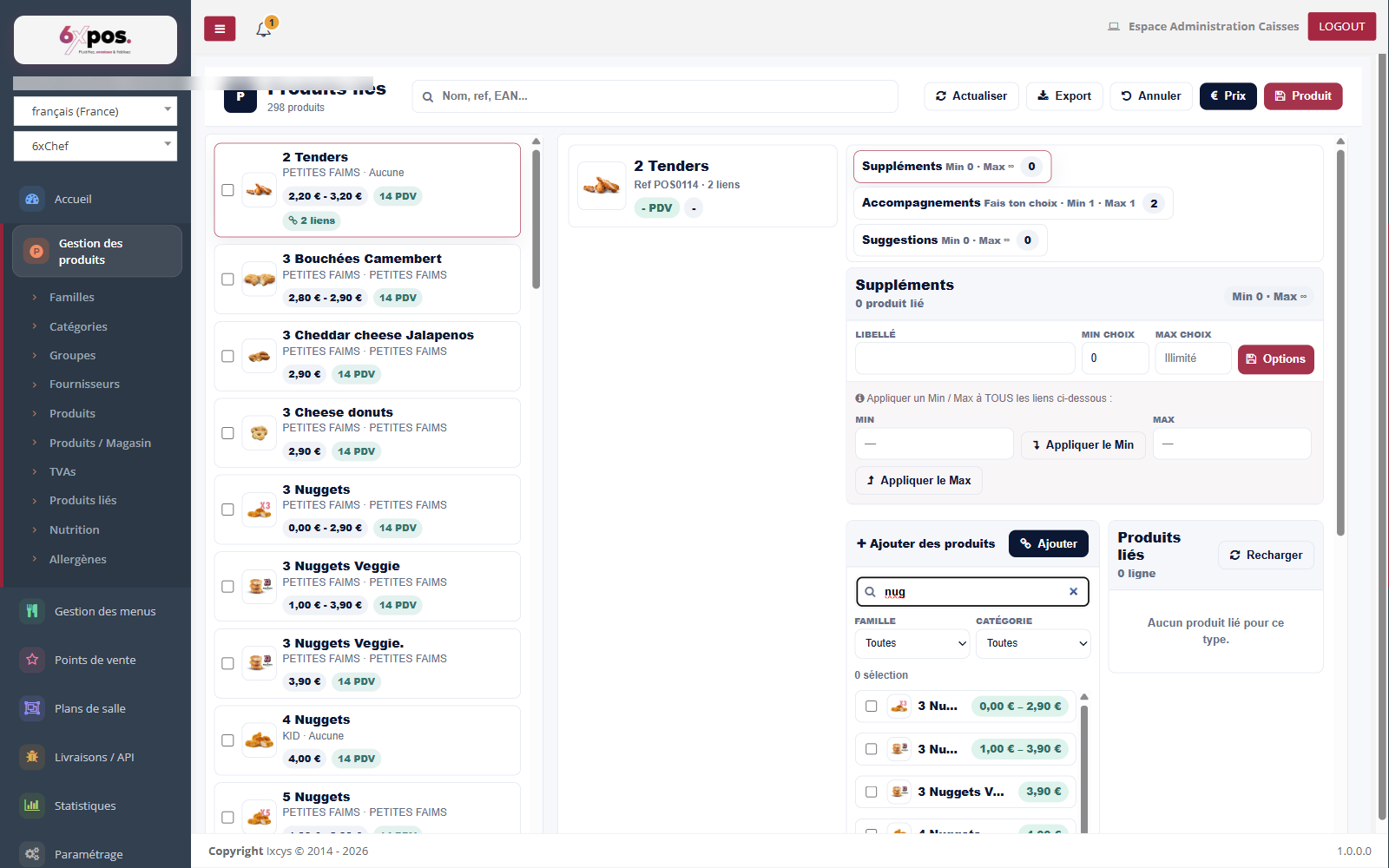
Figure 19 — The linked-products add picker: each candidate shows its price, to tell homonyms apart at a glance.
Multi-selection: the aggregated view
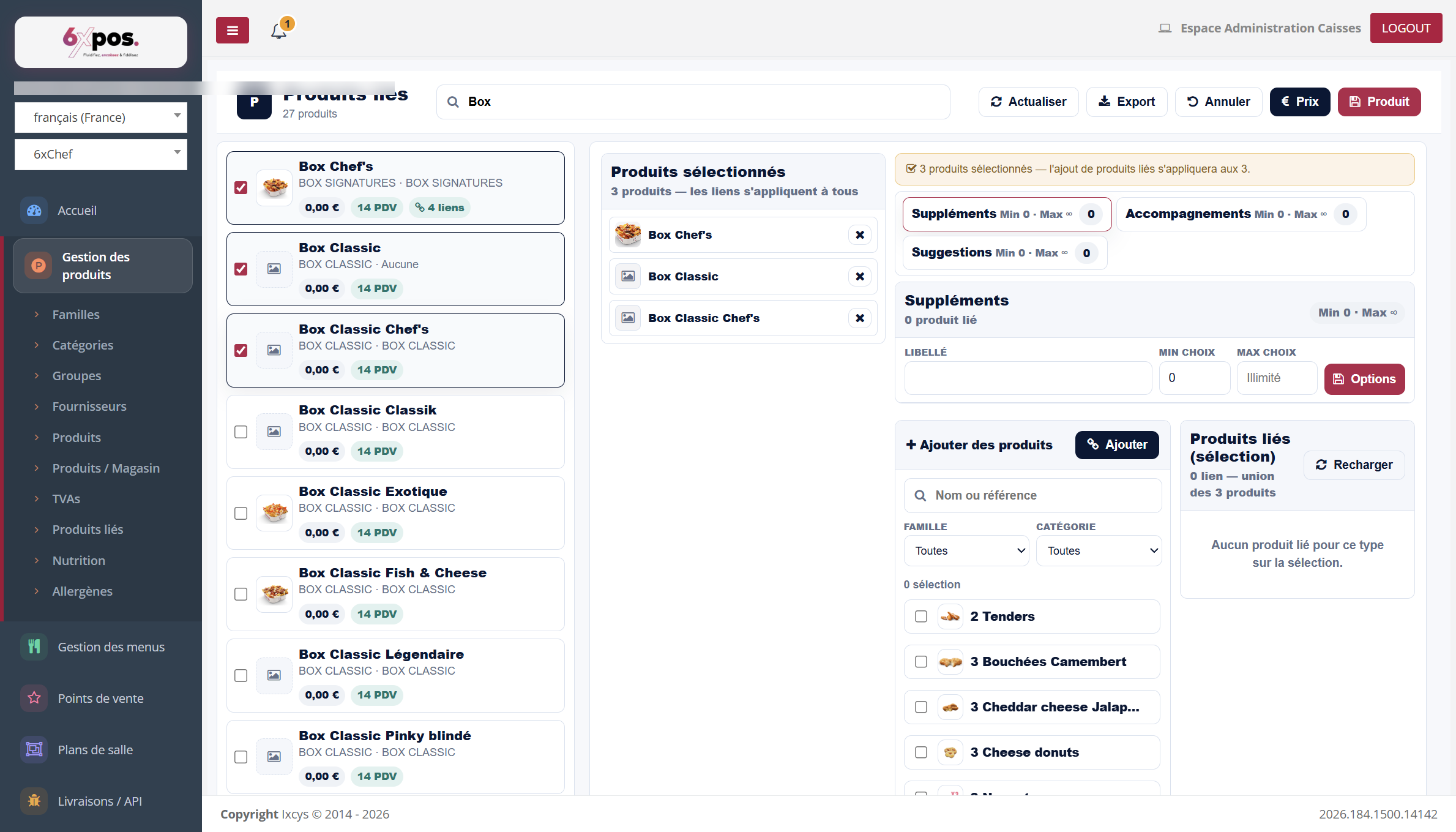
Figure 20 — Three products checked: the panel switches to the aggregated view, links apply to all.
Checking several products switches the panel to the aggregated view: the links shown are the union of the selection’s links, with an X/N counter per link (present in X products out of N) and a “missing from …” note. “Add to missing” completes the products where the link is absent; the trash icon removes it from the whole selection. Additions made in this view apply to all checked products.
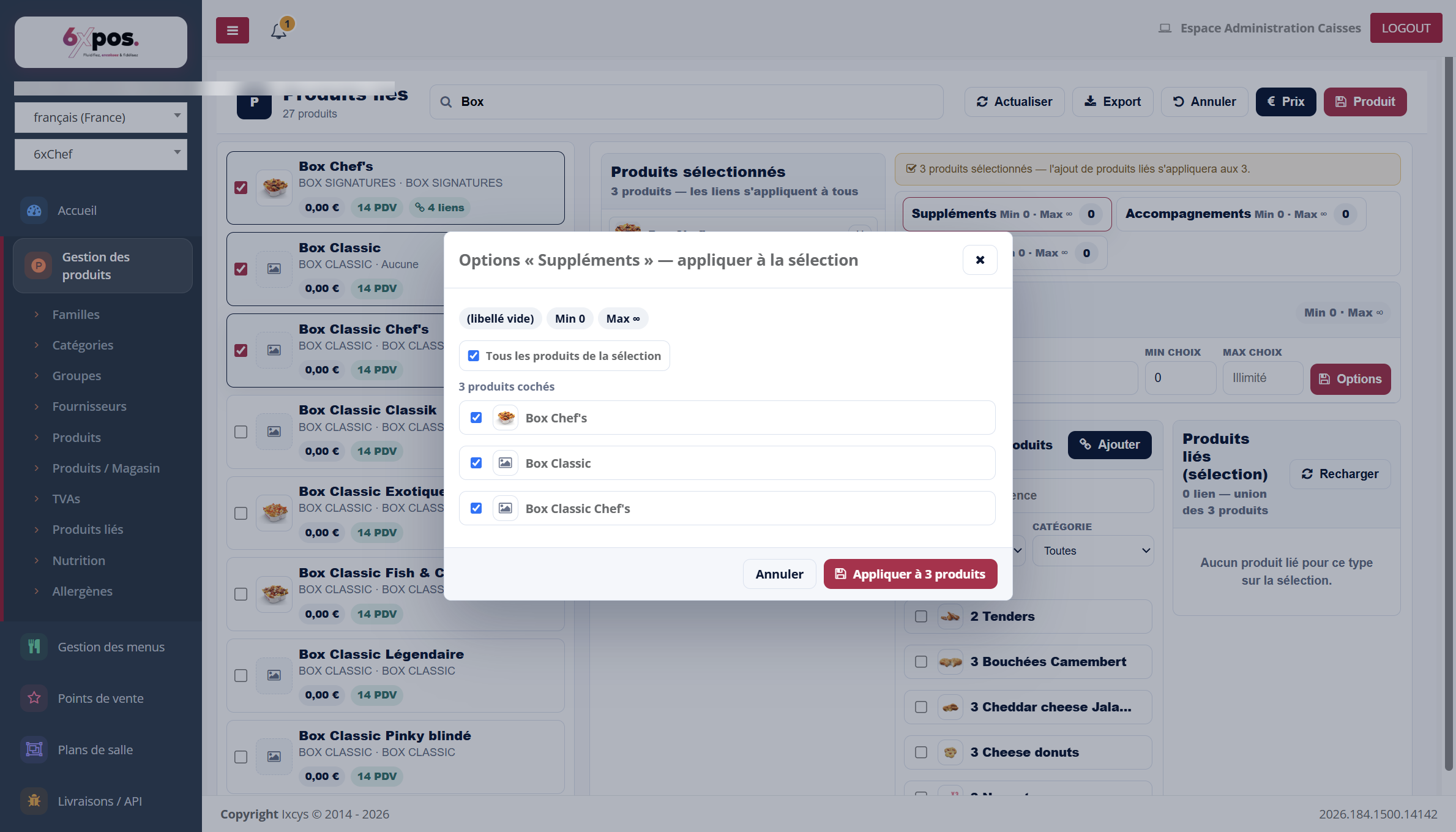
Figure 21 — The Options window in multi-selection: label, Min and Max applied to the whole selection.
Copying links also works in multi: you choose the target products and one or more link types to copy.