
The product sheet — advanced mode
The "Advanced mode" button reveals eleven tabs that cover the full configuration of the product.
General information
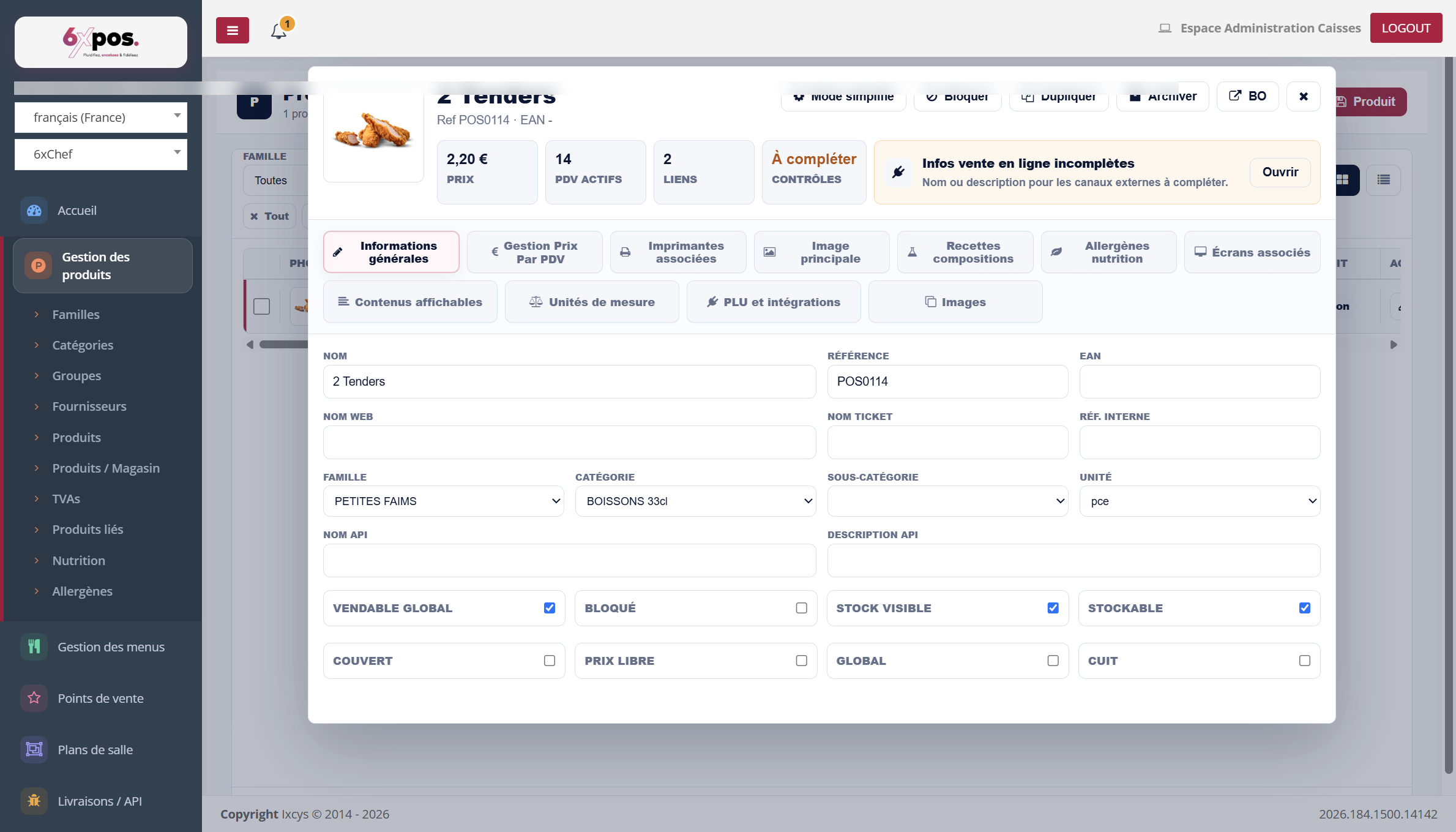
Figure 6 — General information: multiple names, classification and the eight toggles.
The multiple names (name, web name, receipt name, API name, API description) let you tailor the label to each channel. Next come the reference, the EAN, the family, the category, the sub-category, the unit, and eight toggles: Globally sellable, Blocked, Stock visible, Stockable, Cover, Free price, Global, Cooked.
Price management by point of sale
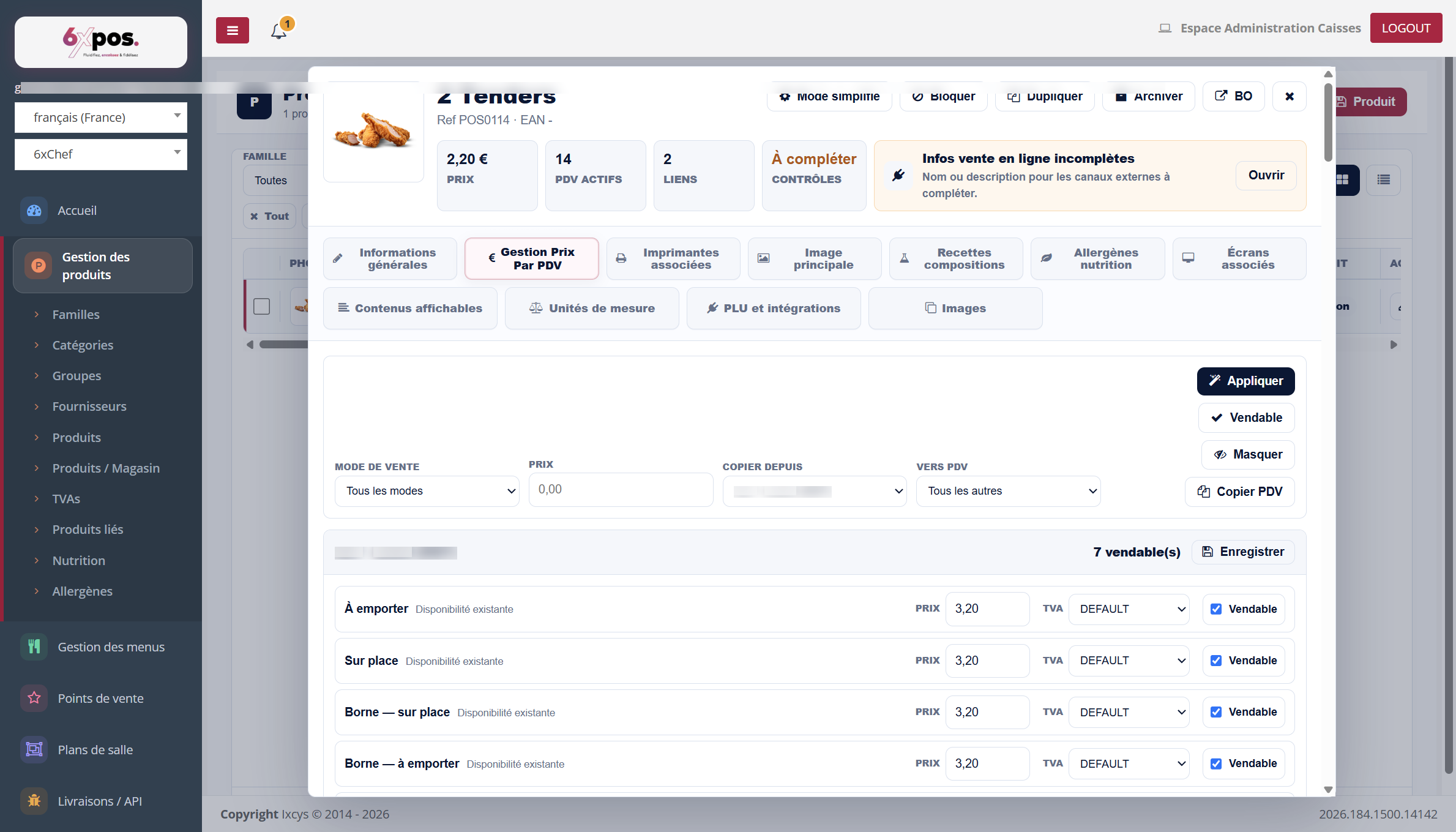
Figure 7 — Prices by point of sale: bulk application and copying from one point of sale to the others.
The most powerful tab for networks: apply a price to a sales mode in bulk, copy the prices of a reference point of sale to all the others ("Copy from / To point of sale"), make items sellable or hide them in bulk, then save point of sale by point of sale.
Good to know — prices are historized: each change closes the old price and creates a new dated one, nothing is ever overwritten. Unchecking "Sellable" does not touch the price (it comes back if you re-check the box). Each change is automatically propagated to the POS tills and to the connected platforms.
Good to know — the VAT entered on a line is an override PER MODE: clearing the field = return to the mode's default VAT. The TVA reference table holds dated rates — a rate change can be scheduled for a future date.
Associated printers
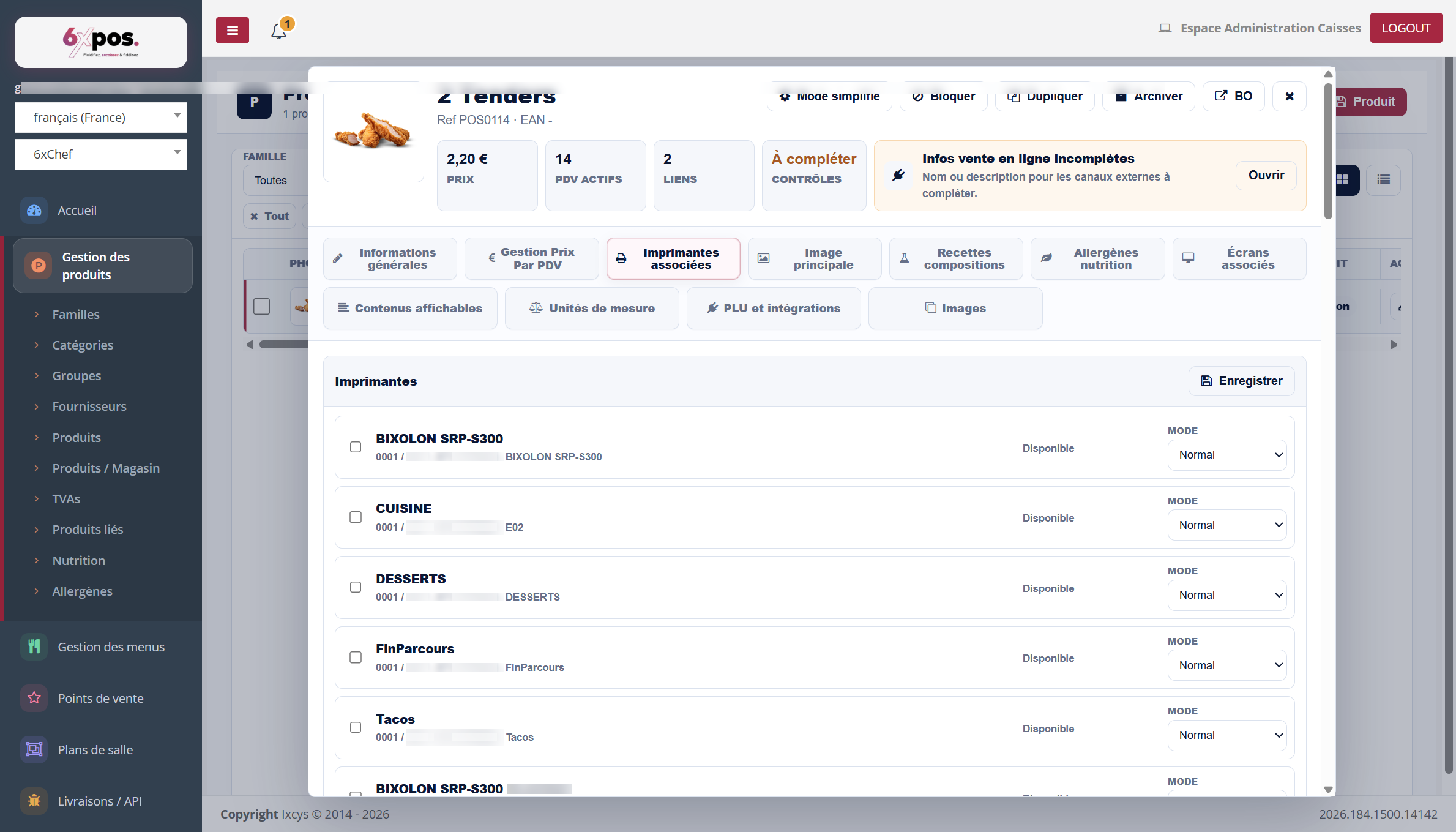
Figure 8 — Routing the product to the production printers, point of sale by point of sale.
Each printer declared in the points of sale appears here with its availability and its mode: it is the product-side counterpart of the routing configured in Points of sale → Devices.
Main image and Images
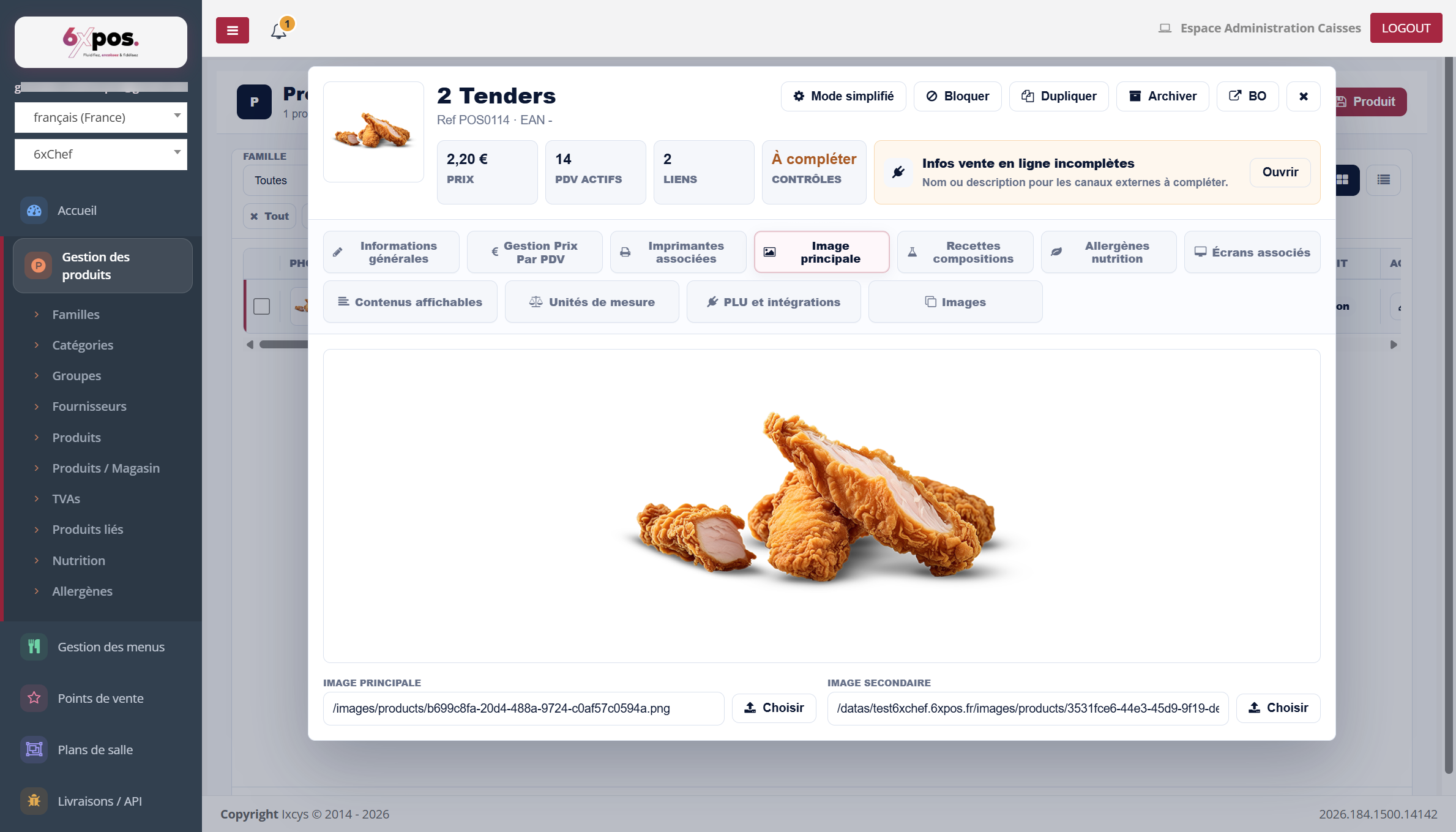
Figure 9 — Main image and secondary image of the product.
The main image illustrates the product on the sales screens; the secondary image is used by the channels that need it (kiosk…). The Images tab gathers the complete gallery: each image has a type (Kiosk thumbnail, Kiosk information) and an order, and can be promoted to main or secondary. jpg/png/bmp formats, 8 MB maximum. The list thumbnail is the main image, otherwise the secondary one, otherwise the first in the gallery.
Good to know — deleting a preview (trash bin) removes the visual immediately and this action is NOT covered by the "Cancel" button.
Recipes / compositions
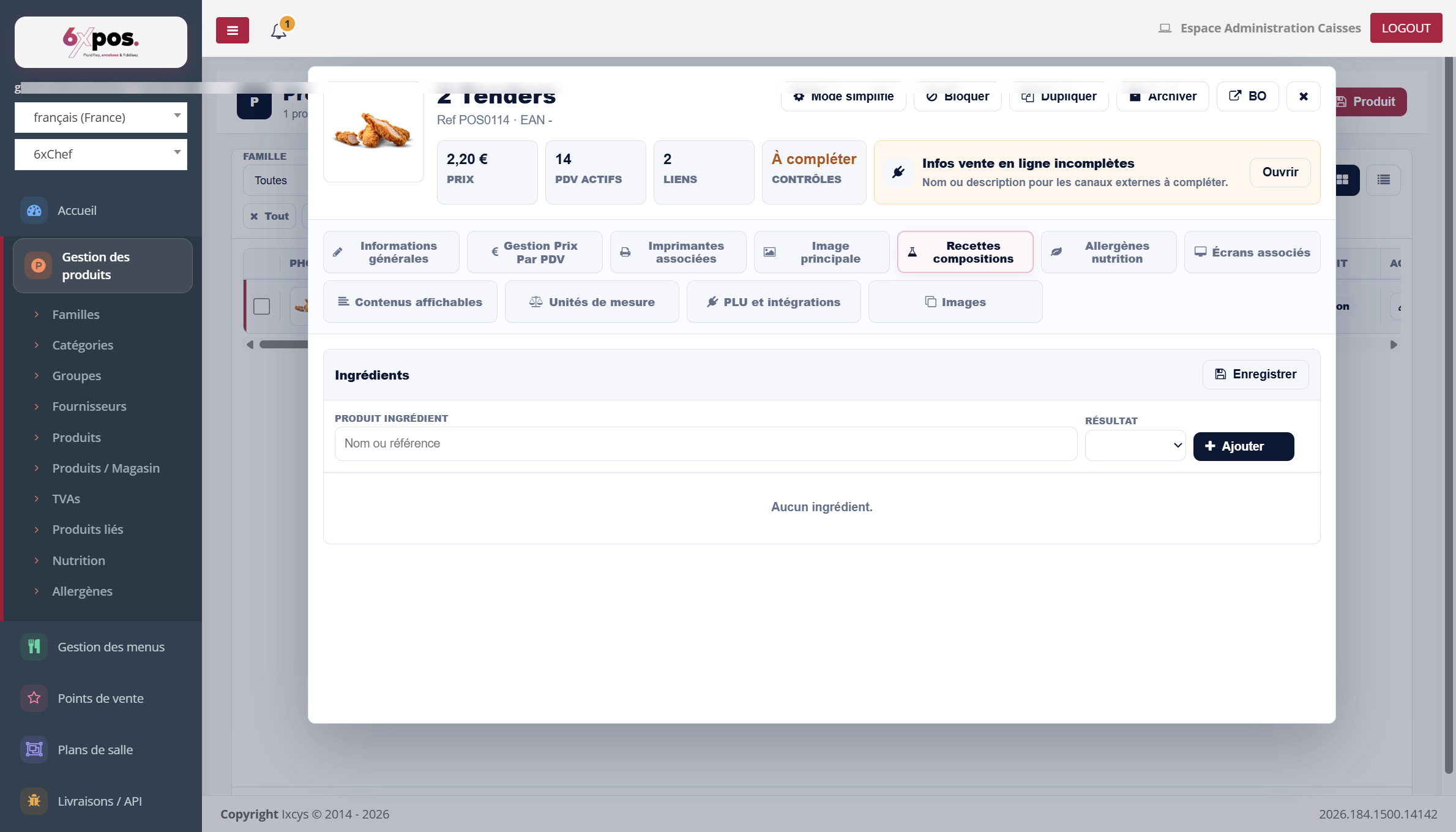
Figure 10 — The composition of the product: the ingredients that make it up.
Allergens / nutrition
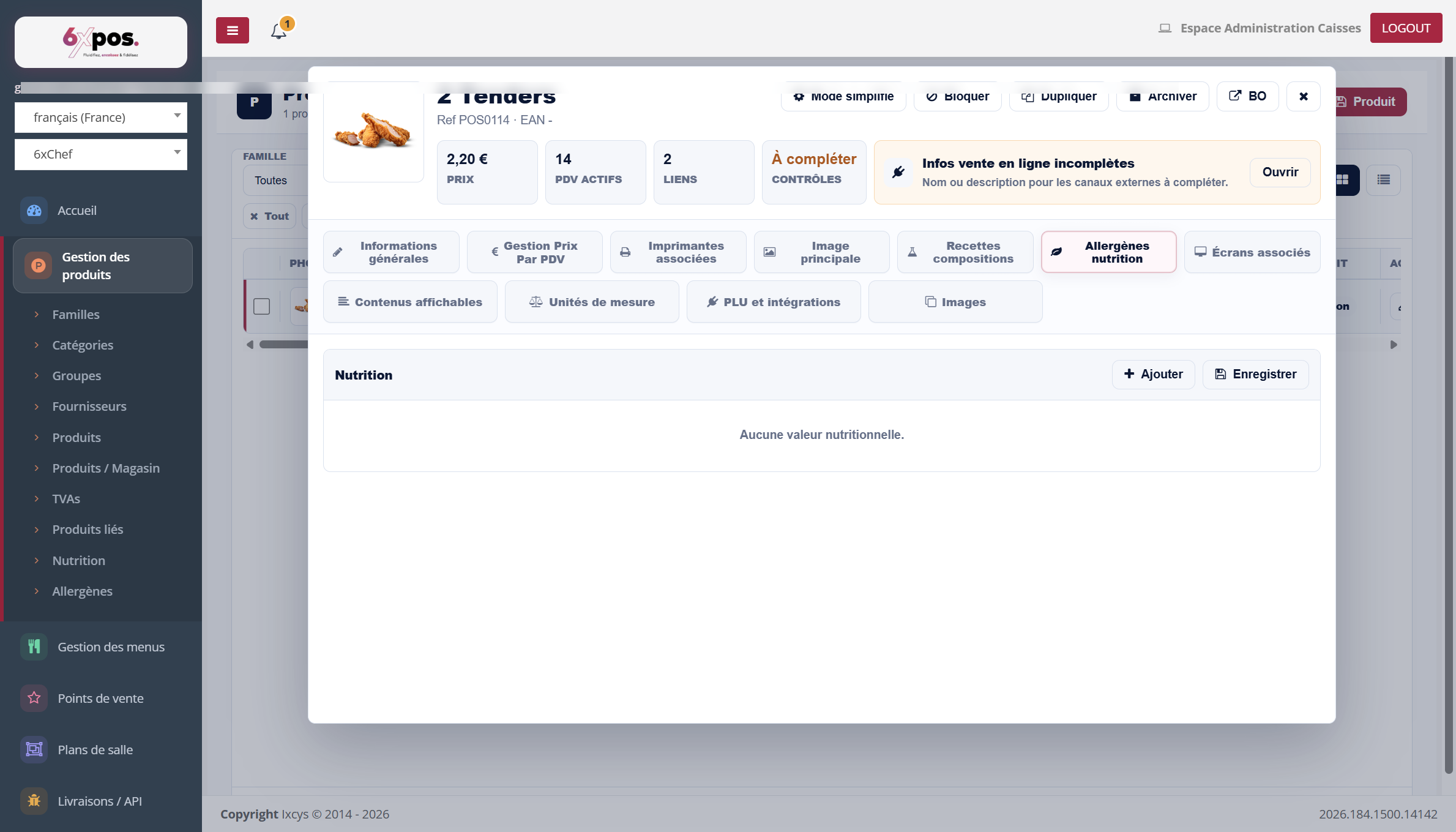
Figure 11 — The nutritional values and allergens of the product.
The allergens and nutritional values entered here feed the regulatory screens; the Nutrition and Allergens views of the module give the cross-cutting overview of the catalog.
Associated screens, Displayable contents, Units of measure
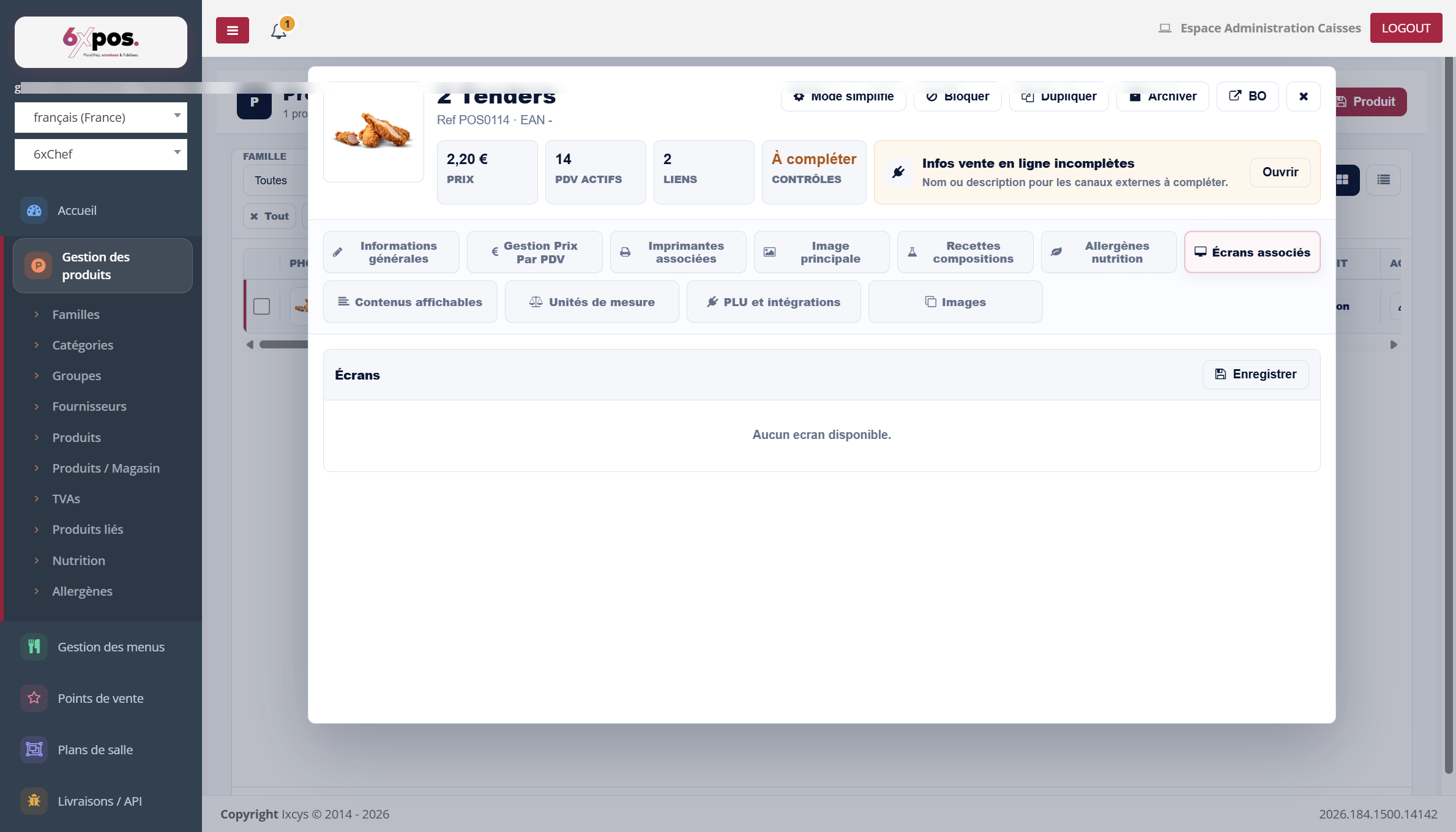
Figure 12 — Screens associated with the product.
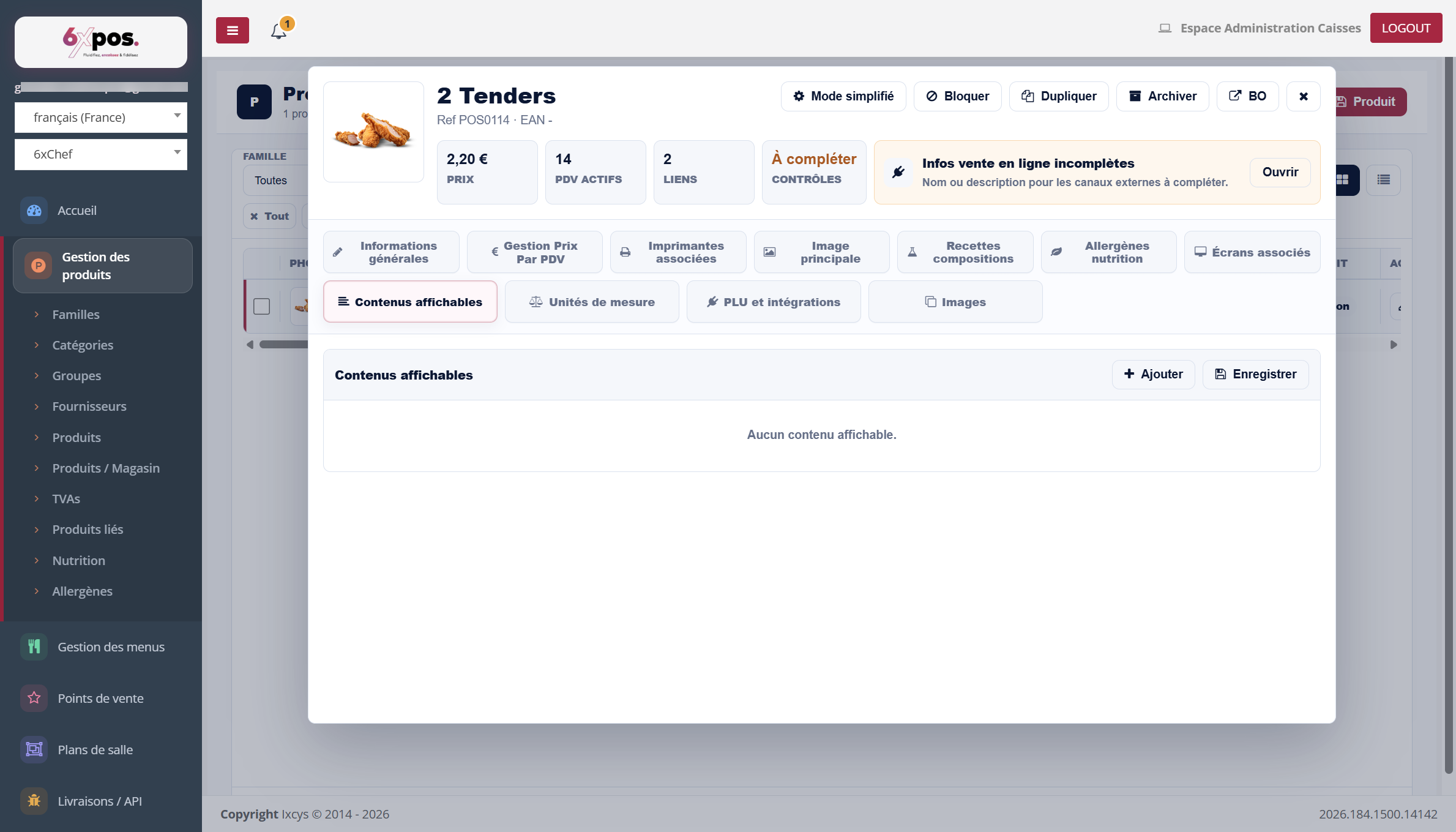
Figure 13 — Displayable contents.
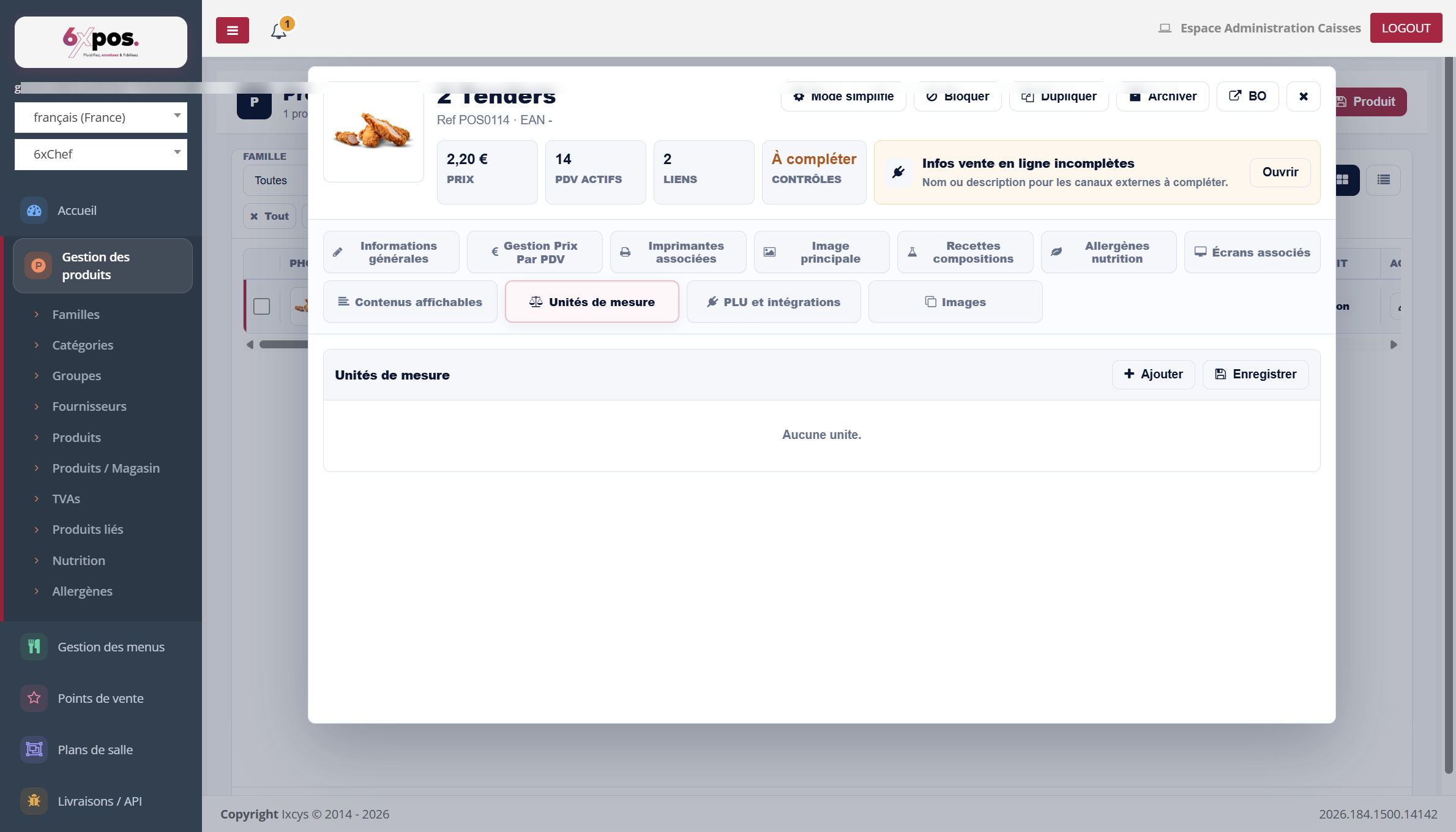
Figure 14 — Units of measure.
PLU and integrations
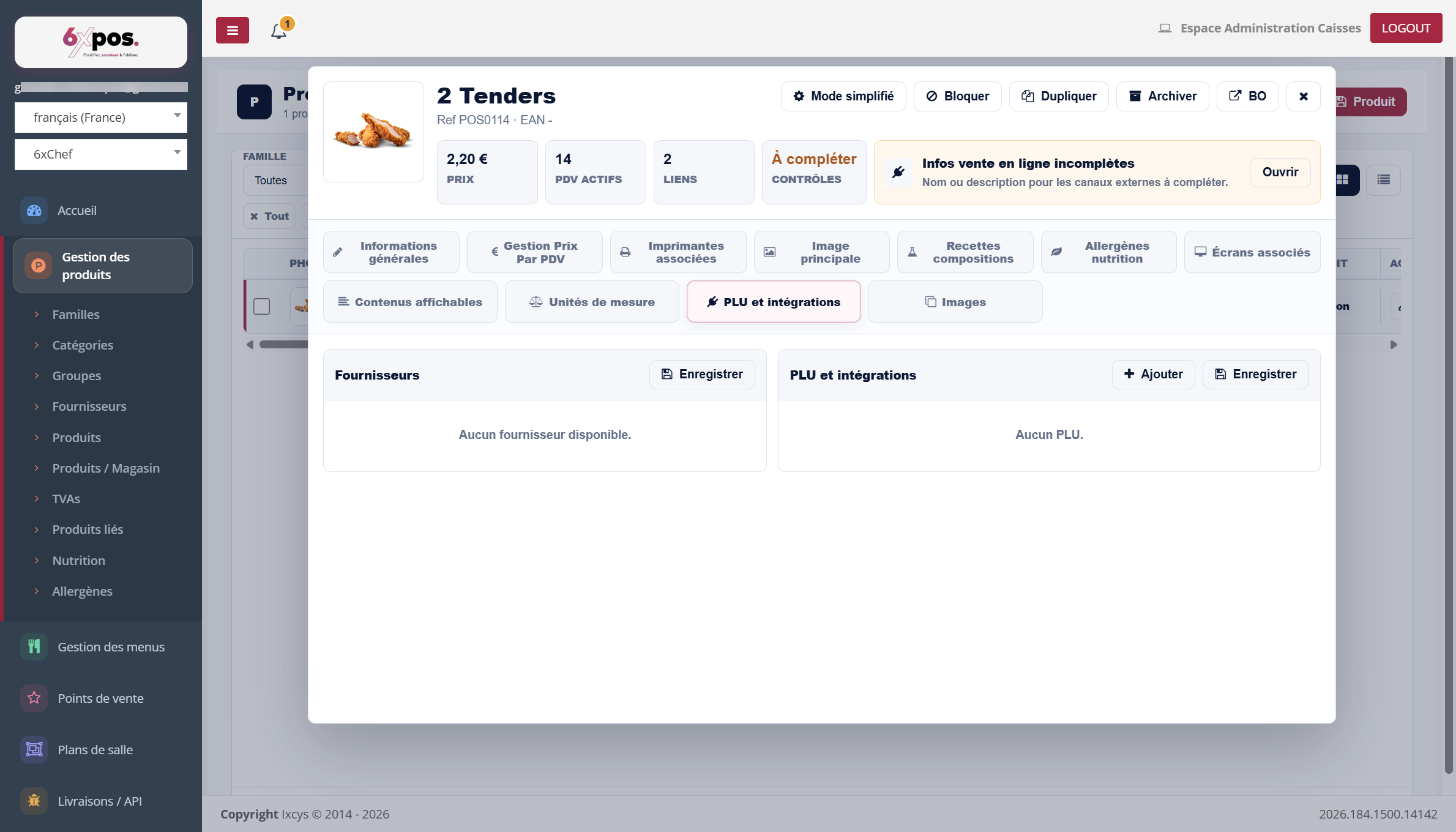
Figure 15 — Suppliers and PLU codes / external integrations.
The PLU codes and integration references make the link with external systems (delivery platforms, third-party POS tills…); the product's suppliers are attached here as well.
Duplicate a product
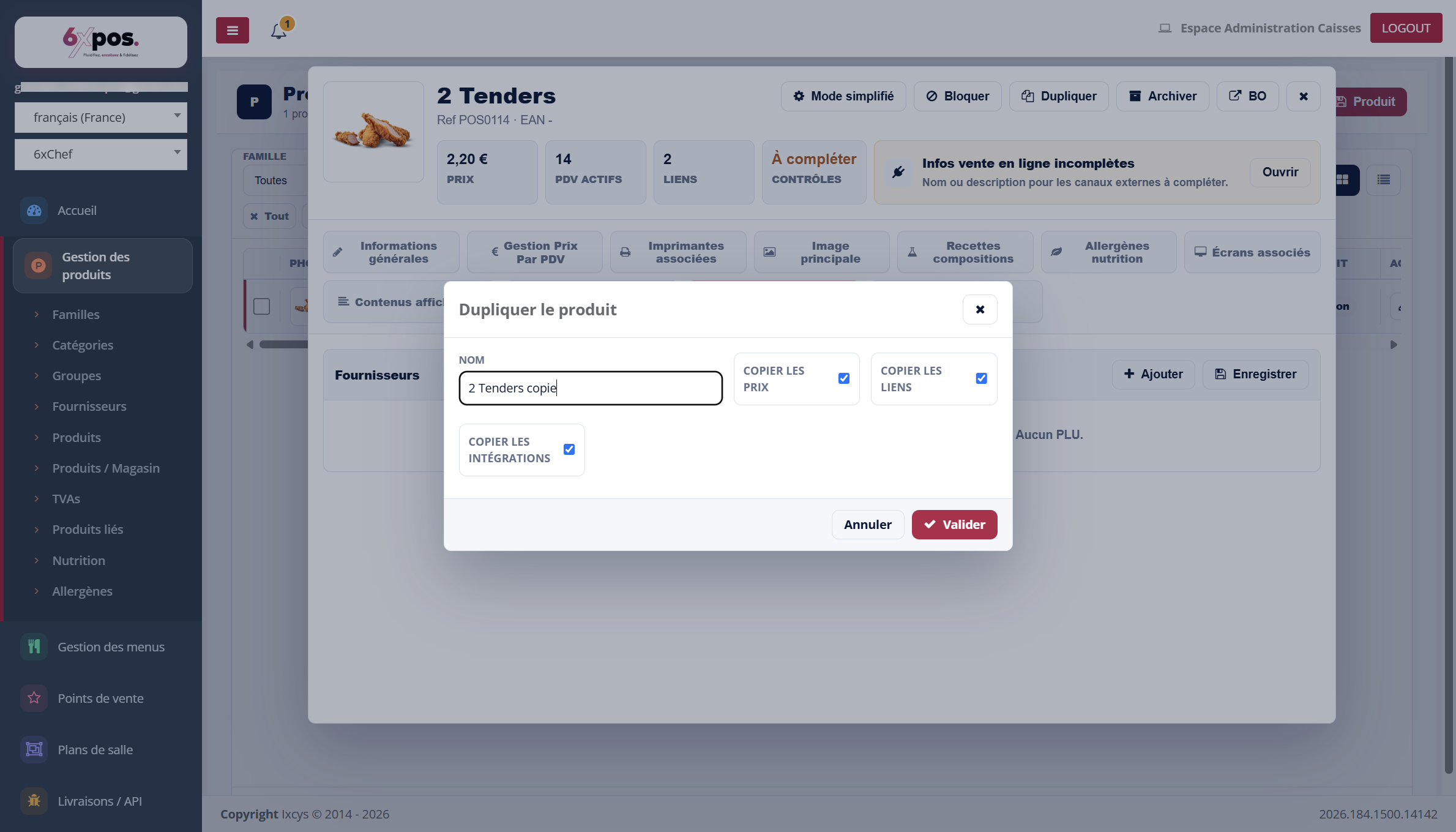
Figure 16 — Duplication: you choose what you take along (prices, links, integrations).
Duplicating creates a copy of the product under a new name, optionally carrying over the prices, the links and the integrations (all checked by default). It is the fastest way to derive a variant of an existing product.
Good to know — only the ACTIVE price is copied (not the history) and the scale key (PLU) is never copied; the duplicate receives a new reference.
Good to know — in the tabular tabs (PLU, units of measure, ingredients, screens, stock…), saving REPLACES all the content of the tab: a row removed from the table is actually deleted. Check the whole table before saving.
Where is this product used?
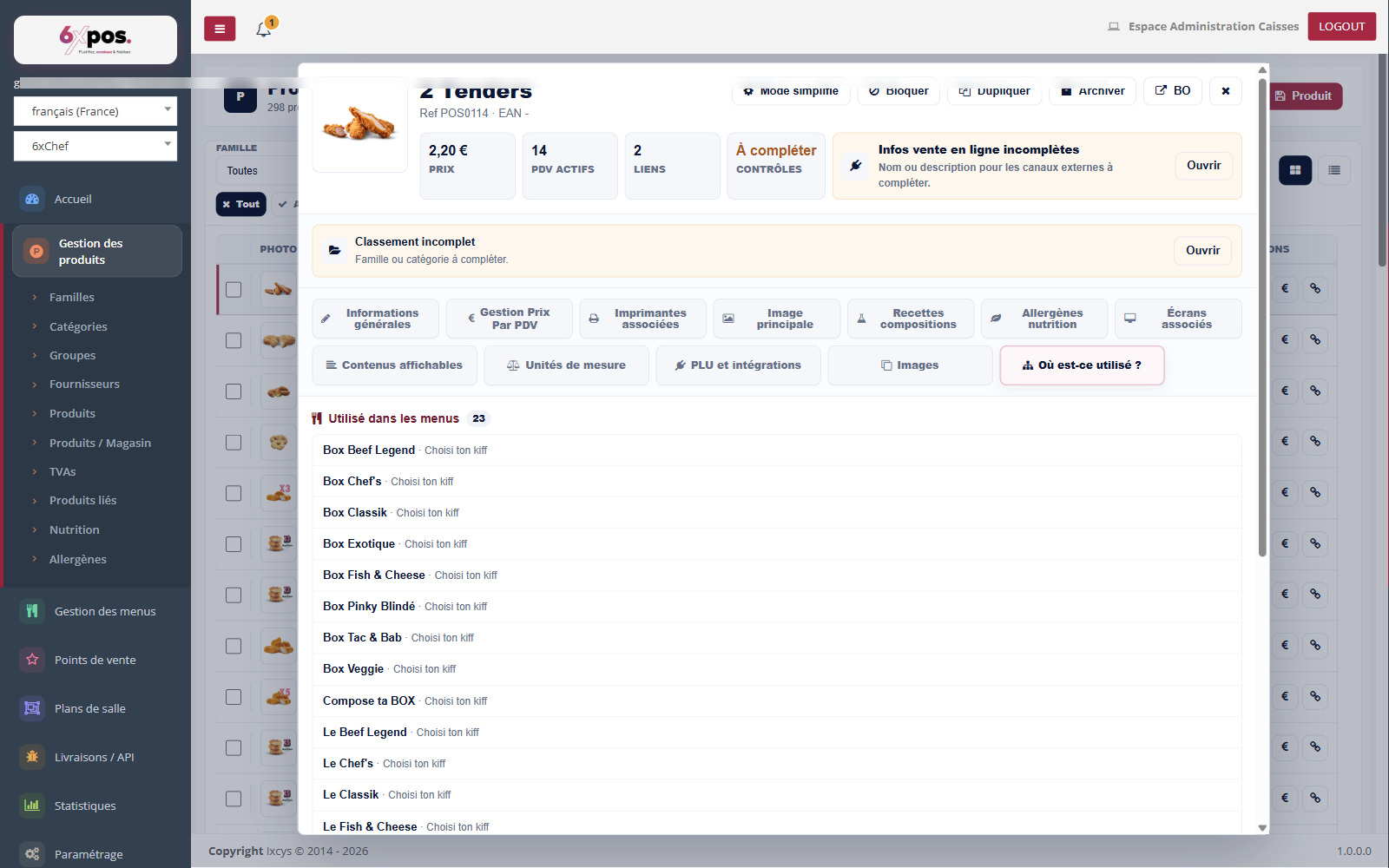
Figure 17 — The "Where is it used?" tab: the menus that contain the product, and the products that offer it as a link.
The last tab of the sheet answers a question you always ask yourself before modifying or archiving a product: "where is it used?". On one side it lists the menus in which a step contains this product (here 23 menus), on the other the parent products that offer it as a linked product (extra, side, suggestion). This is how you measure the impact of a change before making it.
Good to know — this tab is read-only — it is a usage audit. To actually remove the product from a menu or a link, go through the menu concerned or through the parent product's sheet.