
Promos / Discounts
The Restaurant filter shows all POS, Global alone, or a single POS. The "Happy Hour" button creates a pre-filled promotion; "+ New promotion" starts from scratch. A promotion is edited across three tabs:
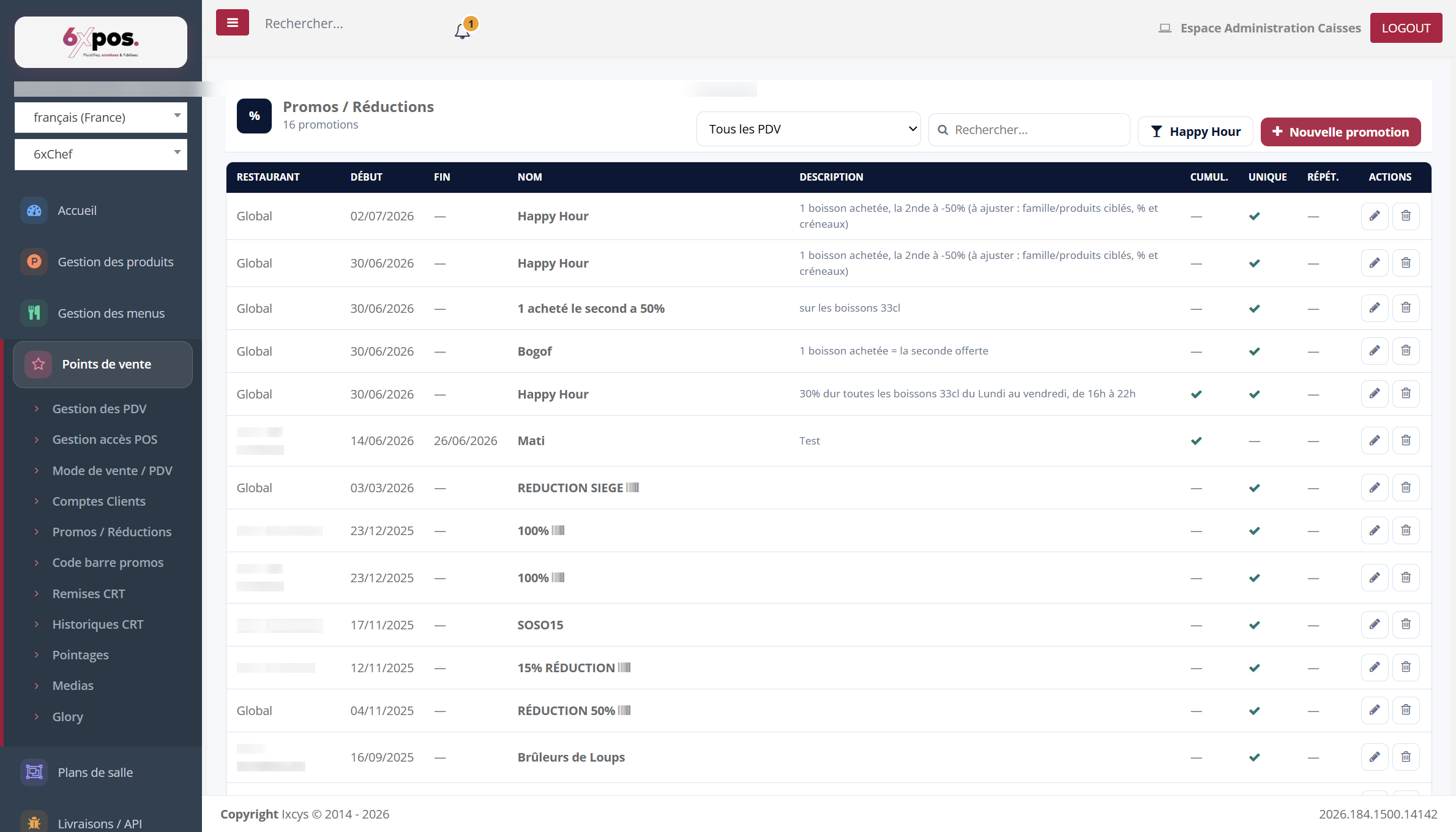
Figure 16 — The promotions list: scope (Global or POS), period, occurrence (stackable / one-off / repeatable).
The Restaurant filter shows all POS, Global alone, or a single POS. The "Happy Hour" button creates a pre-filled promotion; "+ New promotion" starts from scratch. A promotion is edited across three tabs:
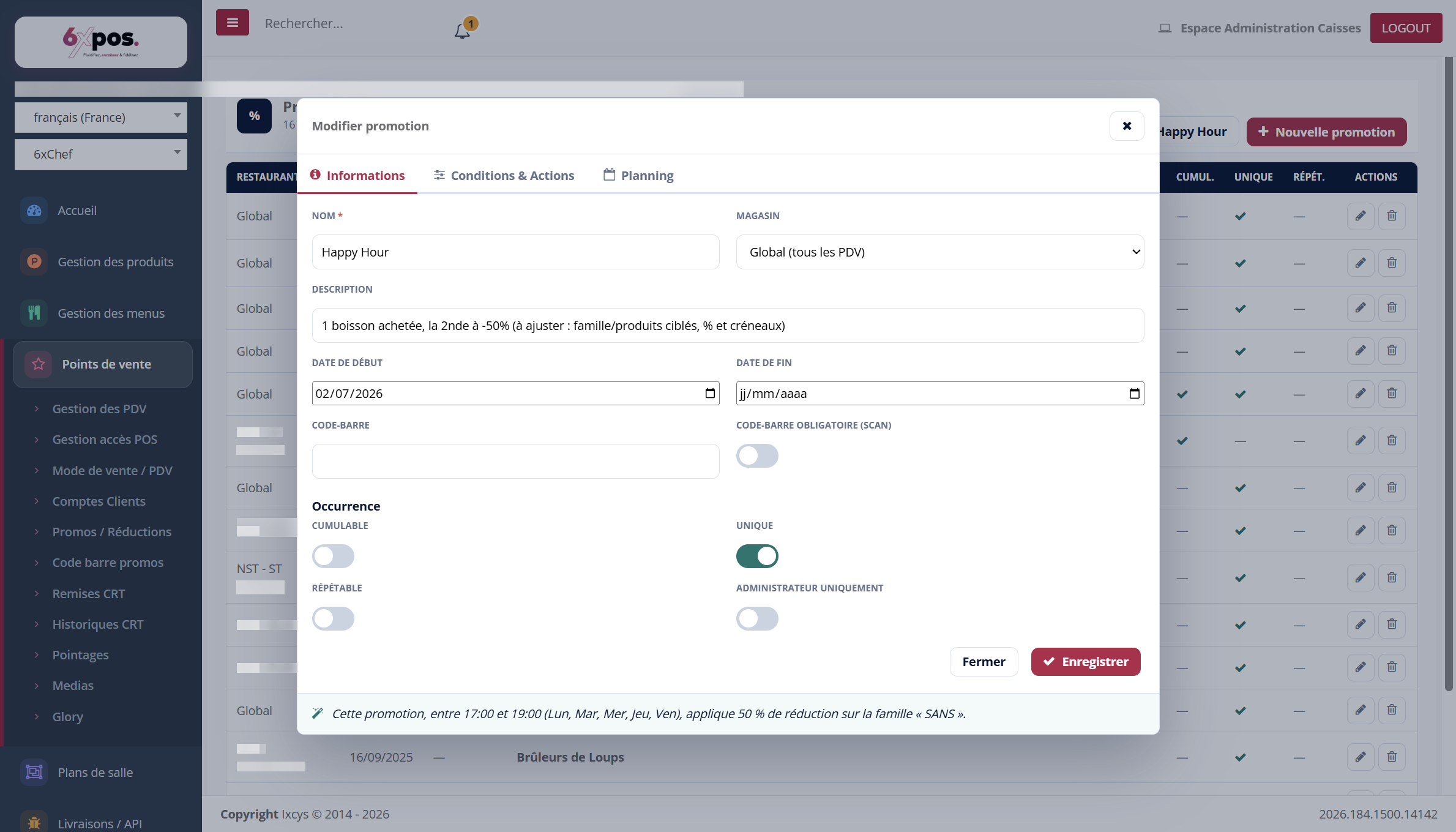
Figure 17 — Information tab: name, scope, period, barcode, occurrence — with the generated English summary at the bottom.
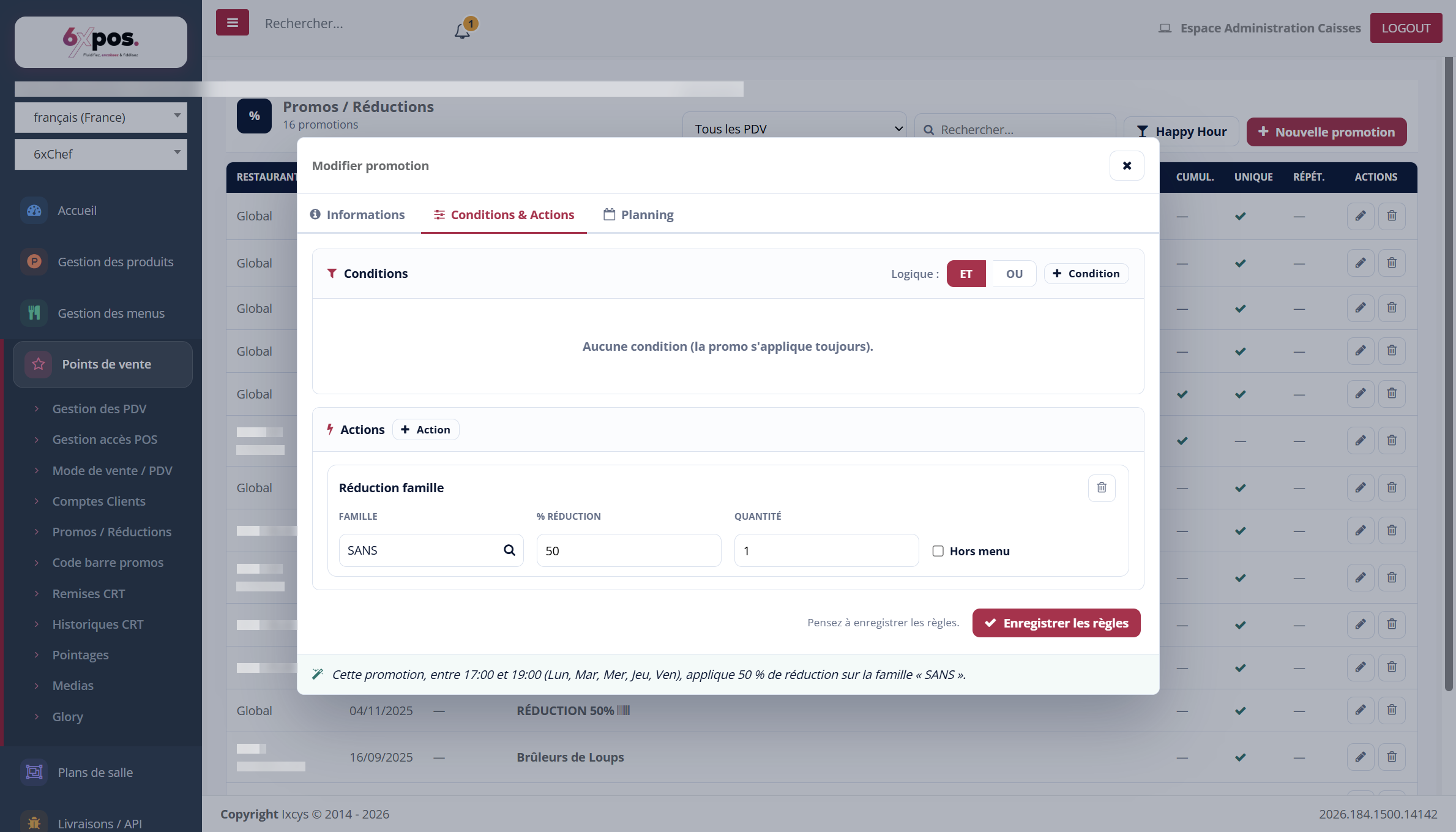
Figure 18 — Conditions & Actions tab: the rules engine (AND/OR conditions, discount actions).
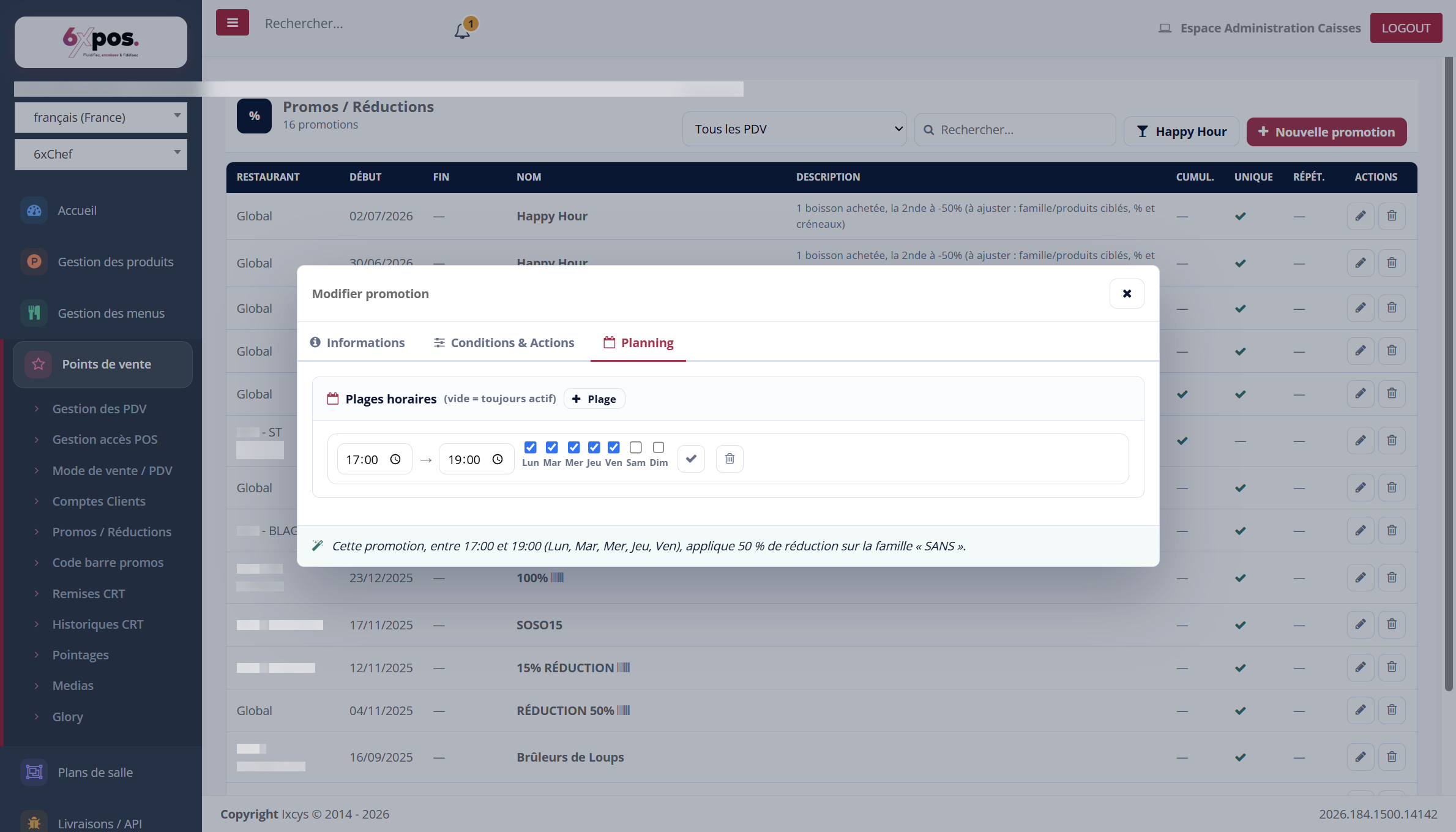
Figure 19 — Schedule tab: time ranges by days of the week (empty = always active).
- Conditions: combined with AND/OR; no condition = the promo always applies.
- Actions: what the promo does (e.g. % discount on a family, with quantity and off-menu option).
- Automatic summary: the sentence at the bottom of the window rephrases the promotion in plain language — read it back to validate your settings.
Warning — if the Conditions & Actions tab of an EXISTING promotion opens abnormally empty, do NOT click "Save rules" (this would overwrite the original rules): close the window and notify support.
Good to know — deleting the default discounts is permanent — they are never recreated automatically.